The page you are looking for is no longer available.
Some reasons why you stumbled upon here might be:
- The page moved or replaced
- You lost access and/or privileges
- You typed an incorrect address

Some reasons why you stumbled upon here might be:


© 20ZZ Z–CORP® LABS
ISBN:		978-0-8975-8949-5
Job number:	ZC/OPS-X.H-TDVB.ZZ03
DOI:		docs.zcorp.org/10.03.00122/00305
This publication may not be reproduced in whole or in part and in any form for any purposes without special permission from the copyright holder, provided acknowledgement of the source is made.
Z–CORP® would appreciate receiving a copy of any publication that uses this publication as a source.
No use of this publication may be made for resale or any other commercial purpose whatsoever without prior permission in writing from Z–CORP®. Applications for such permission, with a statement of the purpose and extent of the reproduction, should be addressed to the Directorate of Labs Public Relations, Communication Division, Z–CORP®, public-cd-labs@zcorp.org.
Disclaimers
The designations employed and the presentation of material in this publication do not imply the expression of any opinion whatsoever on the part of the Z–CORP® Headquarters concerning the legal status of any dimension, galaxy, planet, country, territory, city or area or of its authorities, or concerning the delimitation of its frontiers or boundaries.
Mention of a commercial company or product in this document does not imply endorsement by
Z–CORP® or the authors. The use of information from this document for publicity or advertising is not permitted. Trademark names and symbols are used in an editorial fashion with no intention on infringement of trademark or copyright laws.
The views expressed in this publication are those of the authors and do not necessarily reflect the views of Z–CORP® and DEDRA®. We regret any errors or omissions that may have been unwittingly made.
© Maps, photos and illustrations as specified.
Suggested citation:
Z–CORP® LABS et al. (20ZZ): Development Handbook for Builders™. Z–CORP LABS Handbook. Aubervilliers. docs.zcorp.org/10.510.00122/00027
URL: zcorp.org/labs/resources/handbook/trials-builders-development-handbook-20zz
CLASSIFICATION [C] CLASSIFIED DOCUMENT
Not for public access in any form whatsoever. Do not redistribute.


Z–CORP INTERNAL PRINT CENTRE IDENTIFICATION RECEIPT
ID:		OPSX
PRINTER ID:	ZPC?01032150
DATE:		20ZZ-03-08 22:00
LOCATION:	ABV/FR
Welcome to Z-Corp.
If you are reading this Handbook for the first time, you have succeeded in passing the trials and tribulations required to join the ranks of Z-Corp's brightest Builders. We are proud to have you with us and are looking forward to what you have to offer.
This Handbook functions as a walkthrough to using our proprietary Level Editor™. As such, we recommend reading sections 0~7 in order as you build your first project.
However, if you have experience using game engines or 3d software, you may find it quicker to dive into the editor headfirst to explore for yourself. The Handbook also contains comprehensive references to any editor feature, as well as a glossary, which you can refer to whenever you need.
As you well know, Builders play an indispensable role in constructing the very environments where the Work takes place. Builders architect everything from high-level flow to minute details.
We hope that this Handbook will inspire you to imbue your Levels with the history and principles of the Company.
If you're using the physical copy, simply turn the pages using either hand and/or fingers.
If using the digital copy, use the left-hand sidebar or click through the footer of each page. Additionally, you can use the arrow keys ← → or swipe side to side on your mobile device to turn the pages.
The basics.
The Level Editor™ is where you will manage projects, build levels, playtest, and ship level packs.
Three basic terms are used frequently throughout the editor:
A project holds all of your work for a single level pack. It contains data on every level and interface setting. You can save, export, and load projects from the editor. Projects are saved on your machine as .utrsproj files.
When a project is complete, it can be published through the Steam Workshop. The process is covered in Section 7: Publishing.
A level is a single scene containing at least one Start Zone, where the Runner begins, and at least one End Zone, where the Runner finishes. Most levels are a timed course, with the exception of hub levels, which are further explained in Section 6: Expanding a Project.
An object is the basic building block of a level. Floors, walls, ramps, lights, and the Start Zone and End Zone are all objects. Every structure that a Runner interacts with starts with a single object.
The process of building a level pack looks like this: Each level is designed, decorated, then playtested to verify that it can be completed. If any part of the project doesn't pass a publishing check, errors and warnings will show up and will require debugging.
Once a project passes all the requirements, it will be ready to be published for Runners to take on.
Introducing you to the editor.
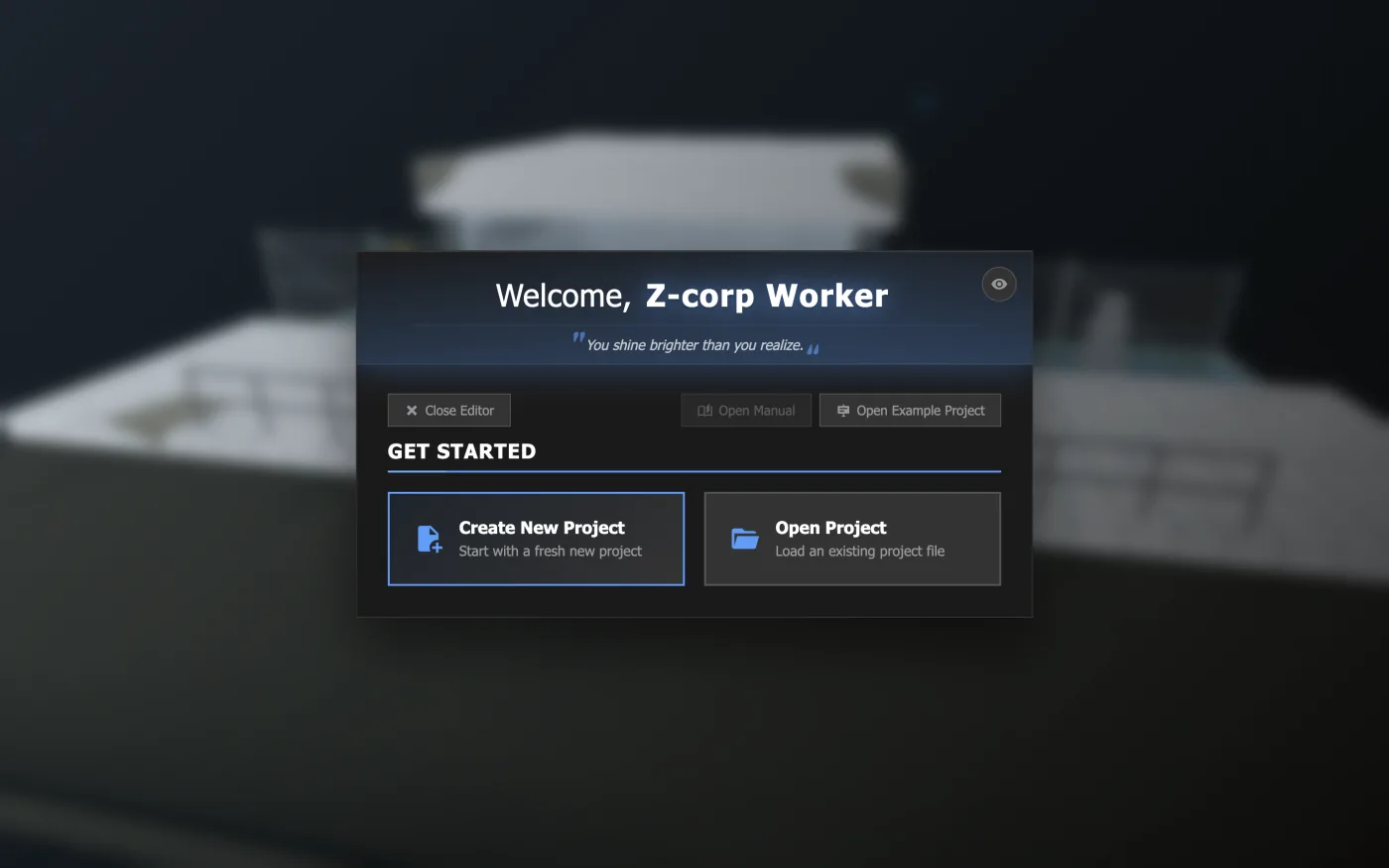
To enter the Level Editor™, select Level Editor from the main menu. You will then be greeted by the Welcome menu. From here you can:
.utrsproj file.Once a project is open, you will be taken to the Scene view where you can start to edit a level.
A new project starts with one simple level containing a Start Zone and an End Zone. If you're loading an existing project, you'll return to the level you last worked on.
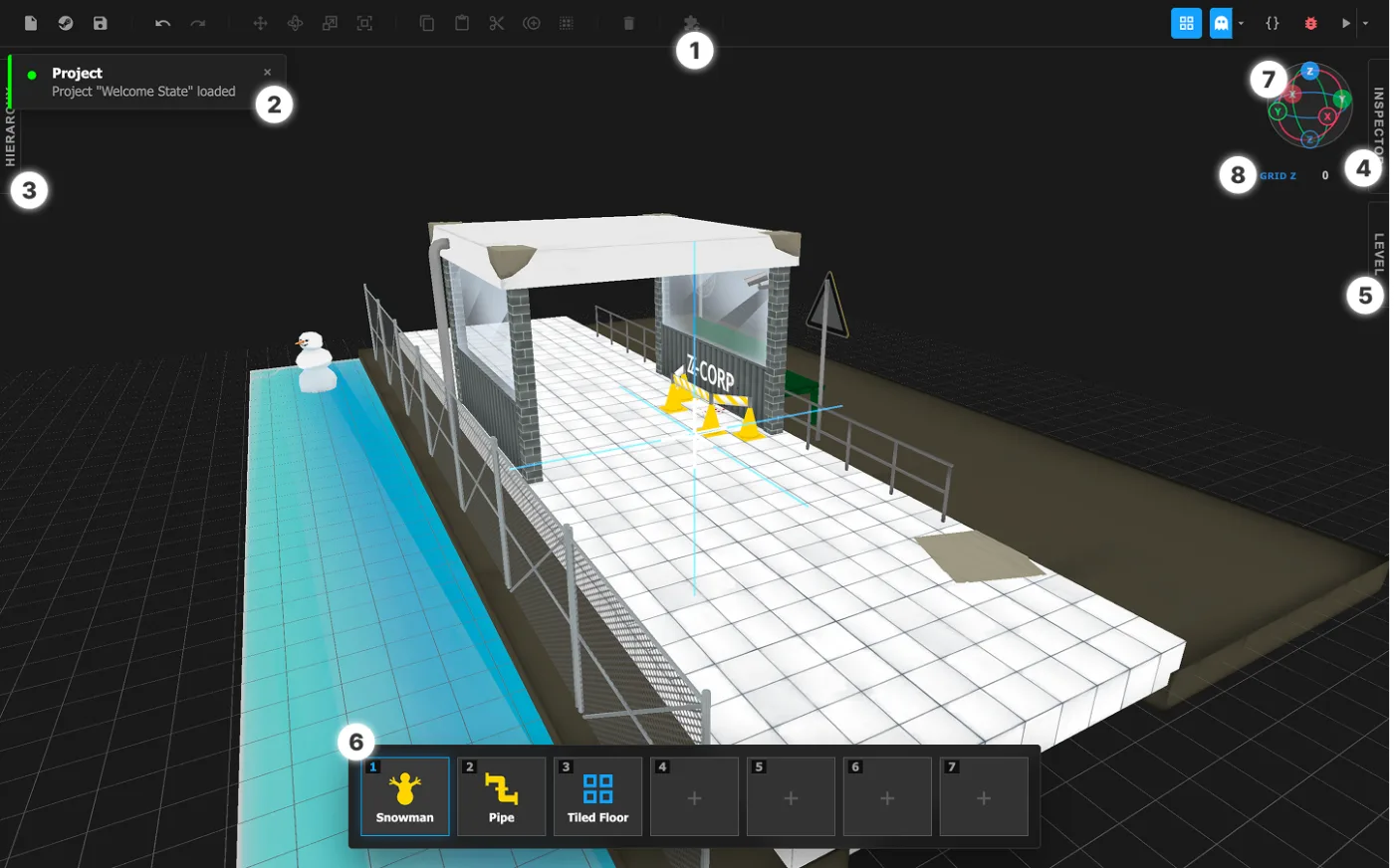
| # | Name | Description |
|---|---|---|
| 1 | Toolbar | Buttons for various editor actions and menus. For a full list, see Appendix: Interface Reference > Toolbar. |
| 2 | Notifications | Short messages that confirm actions like undo and redo. |
| 3 | Hierarchy panel | A list of every object and group in the level. |
| 4 | Inspector | Allows you to view and edit the parameters of the selected object(s). |
| 5 | Level Settings panel | Settings that apply to the current level, such as its name, size, and lighting. Also contains level-specific editor settings. |
| 6 | Inventor Bar | Contains object presets that are loaded and ready to be placed. |
| 7 | Axis sphere | Shows which way the camera is facing, and lets you turn it (see Controlling the Camera). |
| 8 | Grid Z | Sets the height of the grid floor. |
The camera is your view into the level. You'll move it constantly, so take your time to get comfortable with the controls.
Orbiting swings the camera around a point, letting you inspect something from any side.
If object(s) are selected, the camera orbits around your current selection. Otherwise, it orbits around the orbit target, the 3D crosshair that starts in the center of your view.
Three different ways to orbit:
Fly mode lets you steer the camera as if you were inside the level: move the mouse to look around, and use WASD to move. FLY shows on screen while it's on.
There are two ways to use fly mode:
You can change how fast the camera moves and turns in fly mode in the level settings, under Editor.
Placing and transforming objects.
The Level Settings panel holds settings that apply to the whole level. You can access it by opening the tab on the right side of the Scene view.
Try setting the name of the level by editing the level name property. You'll see this name when you start the level.
For a full list of level settings, see Appendix: Level Settings Reference.
The editor's floor shows the current grid. By default, grid snapping is on: when you place, move, or transform an object, it snaps to the grid, which makes it easy to line things up precisely.
To turn snapping on or off, click  Toggle Grid Snapping in the toolbar, or use the Snap to grid checkbox in the level settings, under Editor. Both control the same setting.
To temporarily toggle grid snapping, hold Shift while placing, moving, rotating, or box scaling an object.
To change the spacing of the grid, set Grid size under Editor. Angle snap sets rotation snapping, in degrees.
To raise or lower the grid itself, modify the Grid Z value under the axis sphere at the top right corner of the Scene view.
To place an object into the level, you must first select a preset.
A preset is a blueprint for any object or structure you can place into the level. You can place an object into your level using object presets. Every instance of an object is unique: Changing one object doesn't affect the preset, or any other object made from it.
At the bottom of the Scene view, the Inventor Bar contains your loaded presets. Simply click on a slot to select the preset that you want to place. You can also press the number keys 1–7 to switch between slots.
To load a preset in an empty slot, simply click the slot.
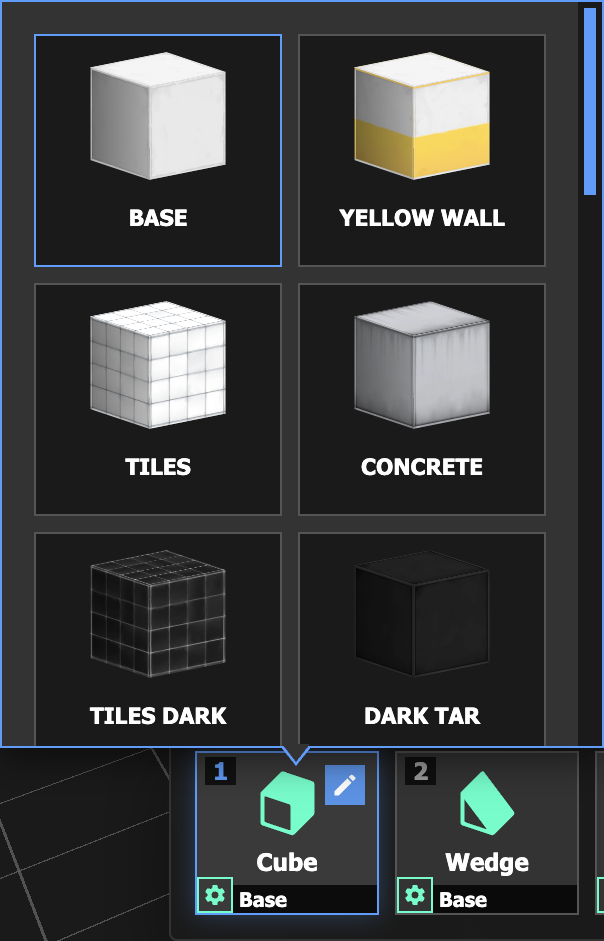
To change the preset in a non-empty slot, hover over it and click the  pencil icon.
Both options will open the Object Preset menu.
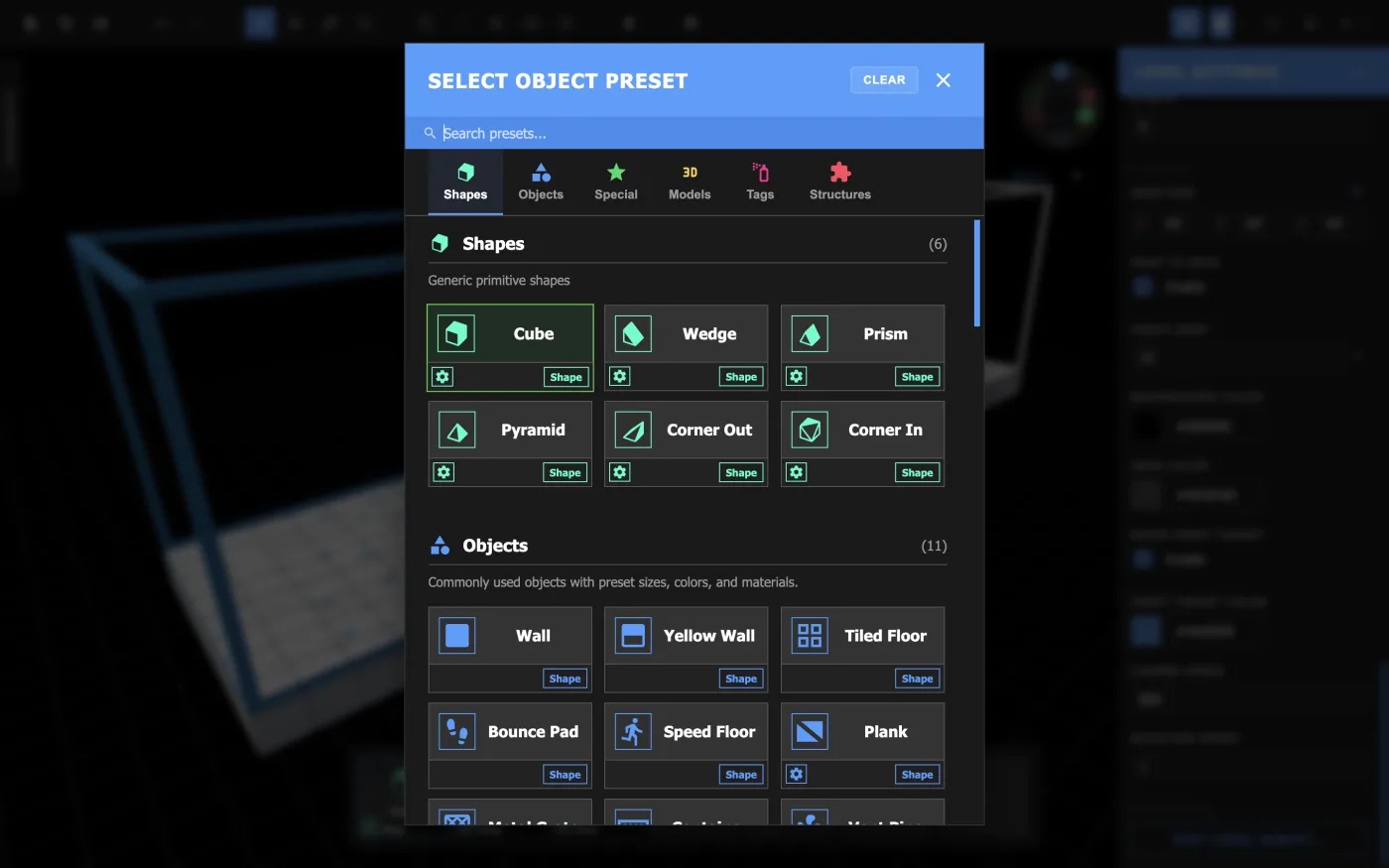
The Object Preset menu contains every preset available to you. This includes individual objects, structures made of several objects, and any custom structures you've made (see Section 4: Creating Structures).
You can browse the Object Preset menu by clicking through its categories, scrolling through the entire list, or typing to search for a specific object by name. Click on one to load it into the Inventor Bar slot.
First time following the manual? Start with a preset in the Shapes or Objects category. Structures are covered in Section 4: Creating Structures, and Special and Model objects are better left for the decorating phase.
For a description of every preset, see Appendix: Object Preset Reference.
Once you've selected a preset, hold right-click to begin placing it within the level. You can place it against other objects or on the grid floor.
As you hold the right mouse button down, you will see a transparent preview of where the object will land. As you adjust its position, you can also rotate it around the Z axis by scrolling (or on trackpad, hold Option/Alt to switch to rotating).
Let go of the mouse button, and the object will be added to the level.
Made a mistake? Click  Undo to undo your last action.
Selecting an object will allow you to edit its parameters from the Inspector.
Objects are automatically selected right after you place them. To deselect, click on an empty space. To select an object, simply click on it.
To select several objects at once, hold Shift and click each one, or click and drag across empty space to select everything inside the area.
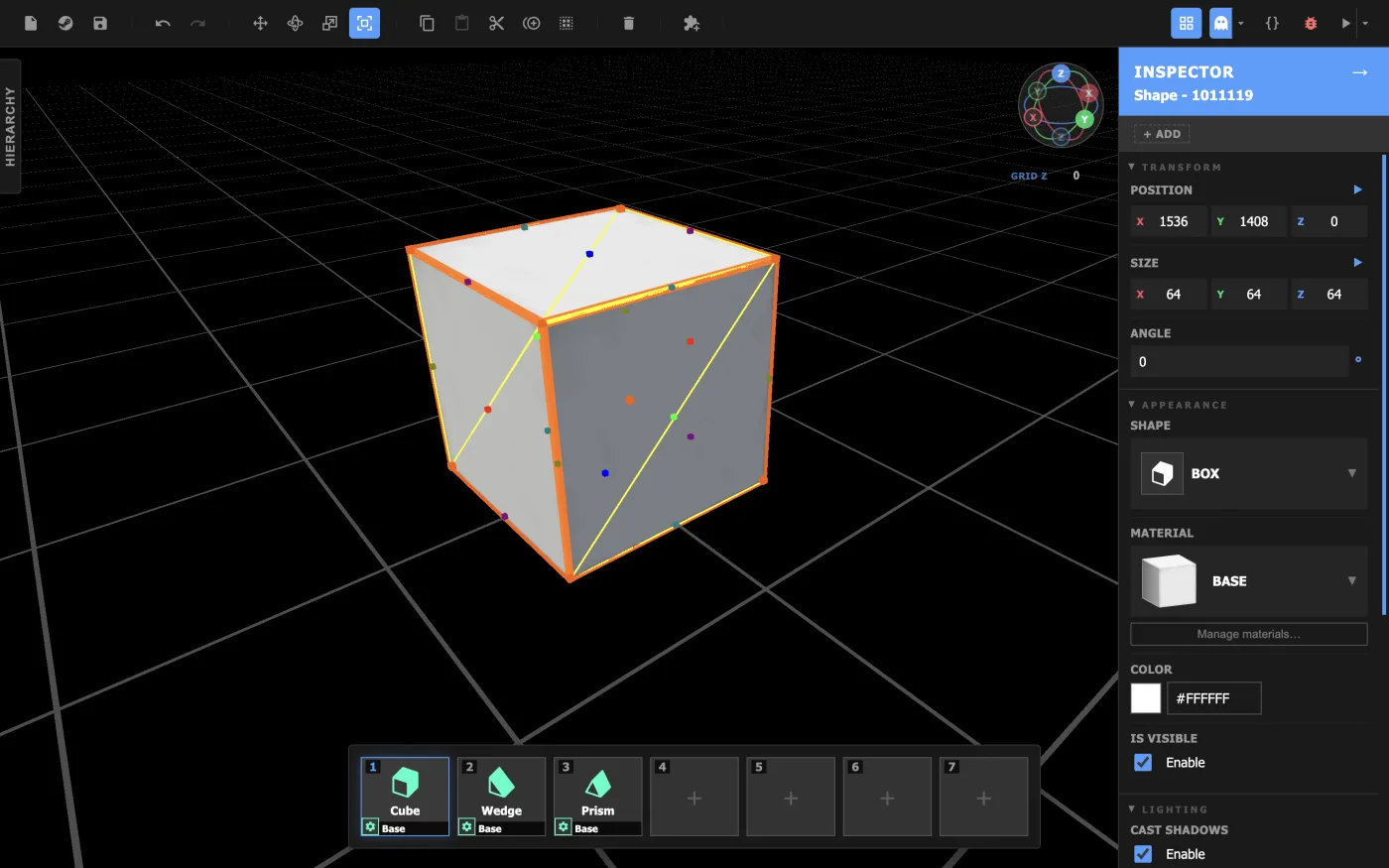
Every object has parameters: values that control how it looks and behaves, such as its size, color, or material. When you select an object, its parameters appear in the Inspector on the right side of the screen. Change a value there and the object updates immediately.
Which parameters an object has depends on its type. A Start Zone has a Zone ID; an End Zone has a Next Level. When you select several objects at once, the Inspector shows only the parameters they have in common. Changing one changes it for all of them.
Some presets let you set one of their parameters before you place them, such as an object's material. This is called a variable parameter.
Presets with a variable parameter display a  cog icon on the bottom left. From the Inventor Bar, click the cog to set the value. Objects will be placed using the set parameter value.
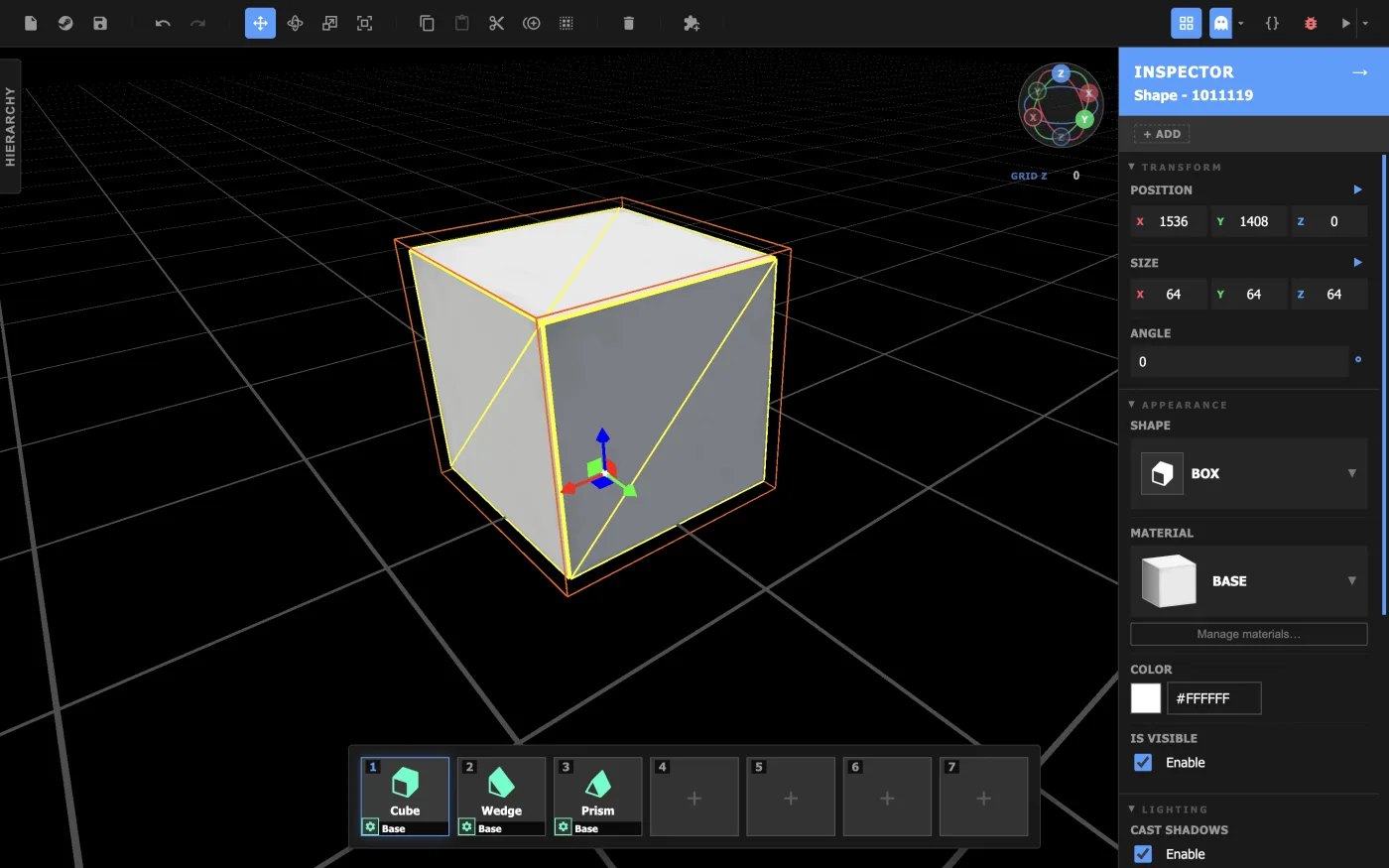
To move, rotate, or resize an object, select it and choose one of the four transform tools in the toolbar. Press Tab to cycle between them.
The Move Tool shows an arrow and square for each axis and plane. Drag an arrow to slide the object along that axis, and drag a square to move the object freely along that plane. You can also use the white square at the center to move it along all three axes at once.
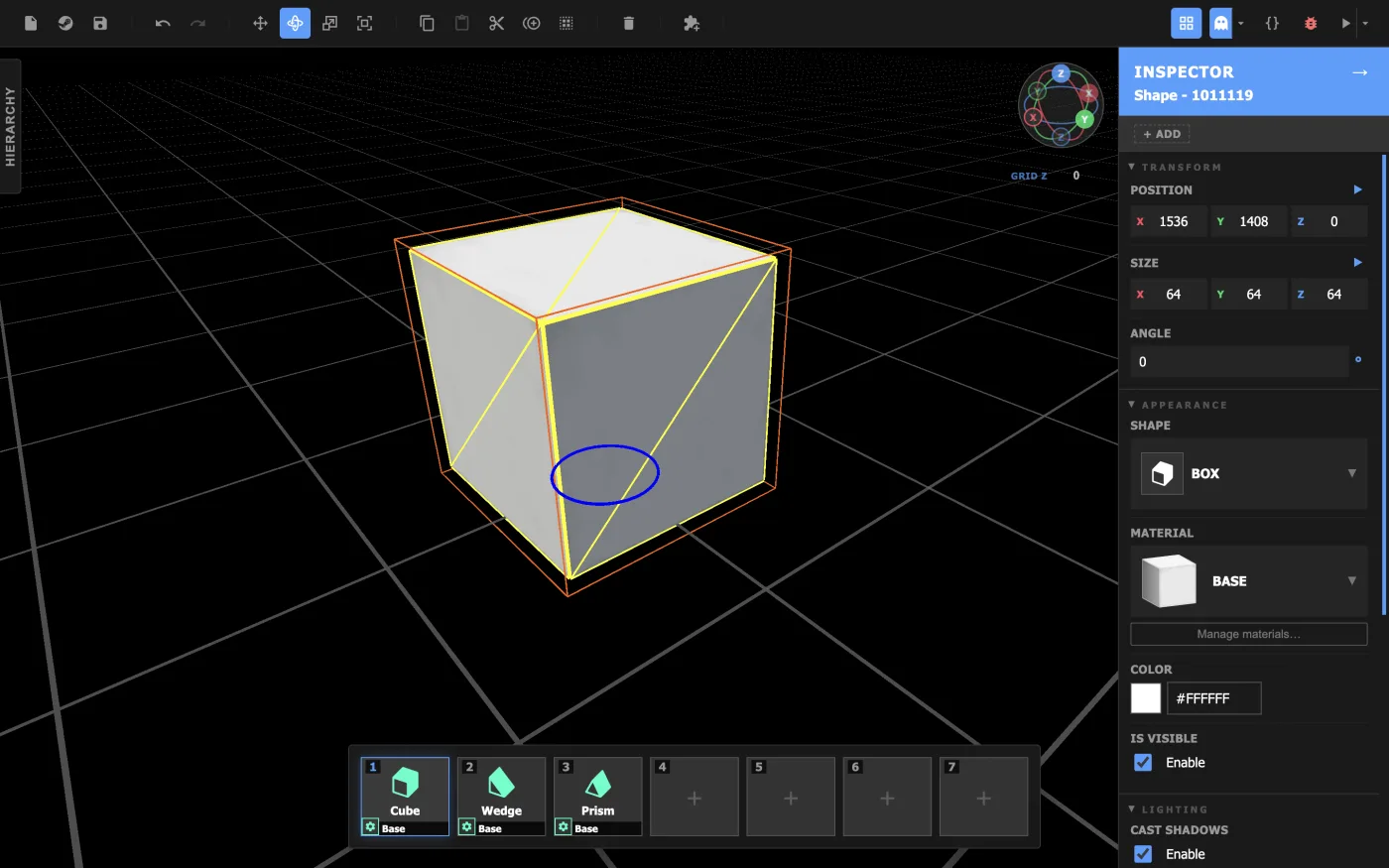
The Rotate Tool shows a ring for each axis the object can turn around. Drag a ring to rotate the object around that axis.
Shapes and most Special objects can only rotate around the Z axis, so they show a single blue ring. Models, text, and tags can rotate around all three axes (see Object Types).
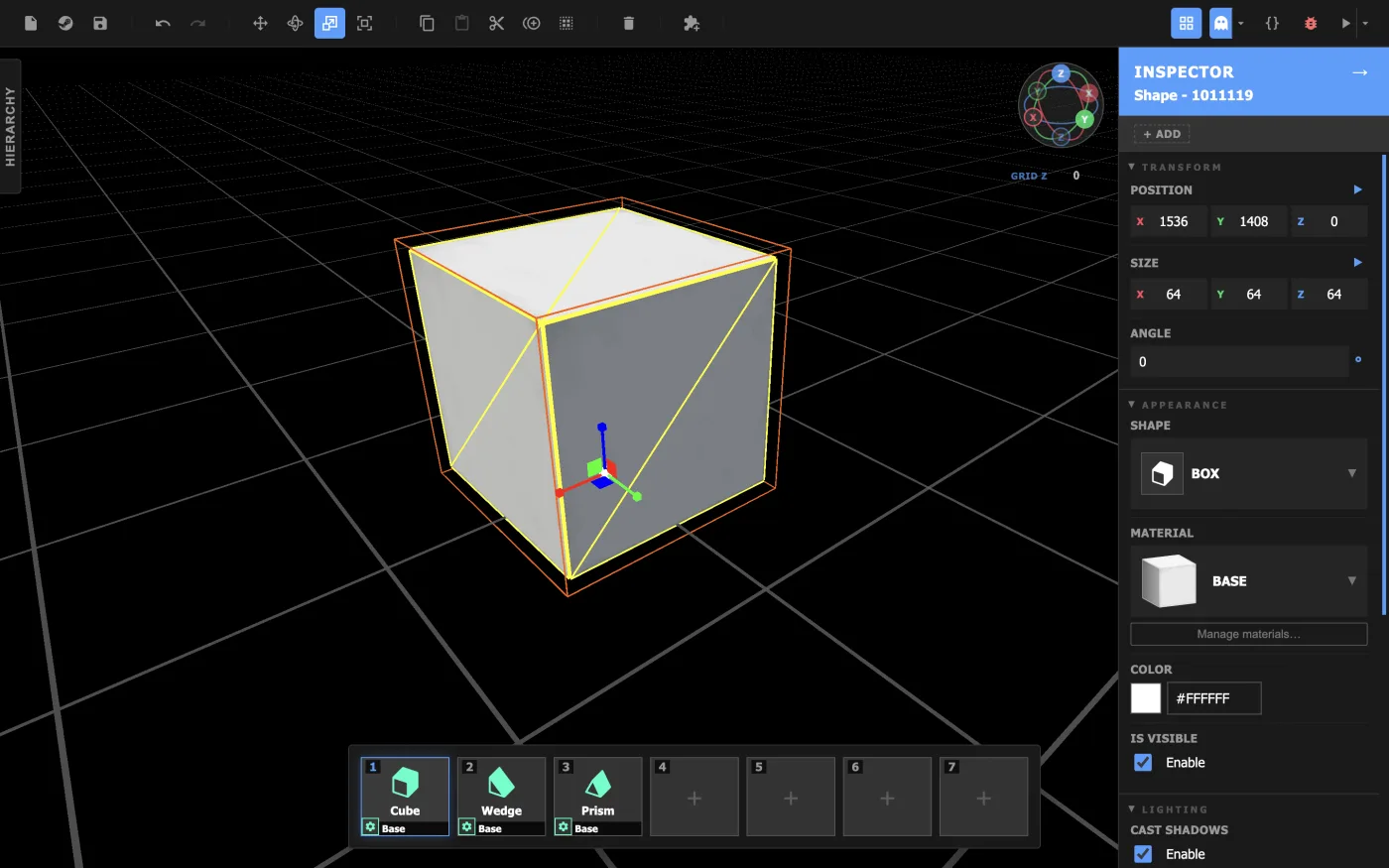
The Scale Tool shows a handle and square for each axis and plane. Drag a handle to stretch or shrink the object along that axis, and drag a square to scale the object freely along that plane. You can also use the white box at the center to scale in every direction.
The Scale Tool doesn't snap to the grid. Use the  Box Scale Tool to resize an object with grid snapping!
The Box Scale Tool surrounds the object with points in the shape of a box. Drag a corner point or face point to resize the object.
To resize the object symmetrically, like the Scale Tool does, hold Option/Alt while dragging.
Five toolbar buttons that are useful for manipulating objects:
| Icon | Action | Shortcut | Description |
|---|---|---|---|
 |
Cut | Ctrl/⌘+X | Removes the selection and adds it to the clipboard. |
 |
Copy | Ctrl/⌘+C | Copies a selection to the clipboard. |
 |
Paste | Ctrl/⌘+V | Places clipboard contents. |
 |
Duplicate | Ctrl/⌘+D | Duplicates the selection in place. |
 |
Delete | Backspace / Delete | Removes the selection. |
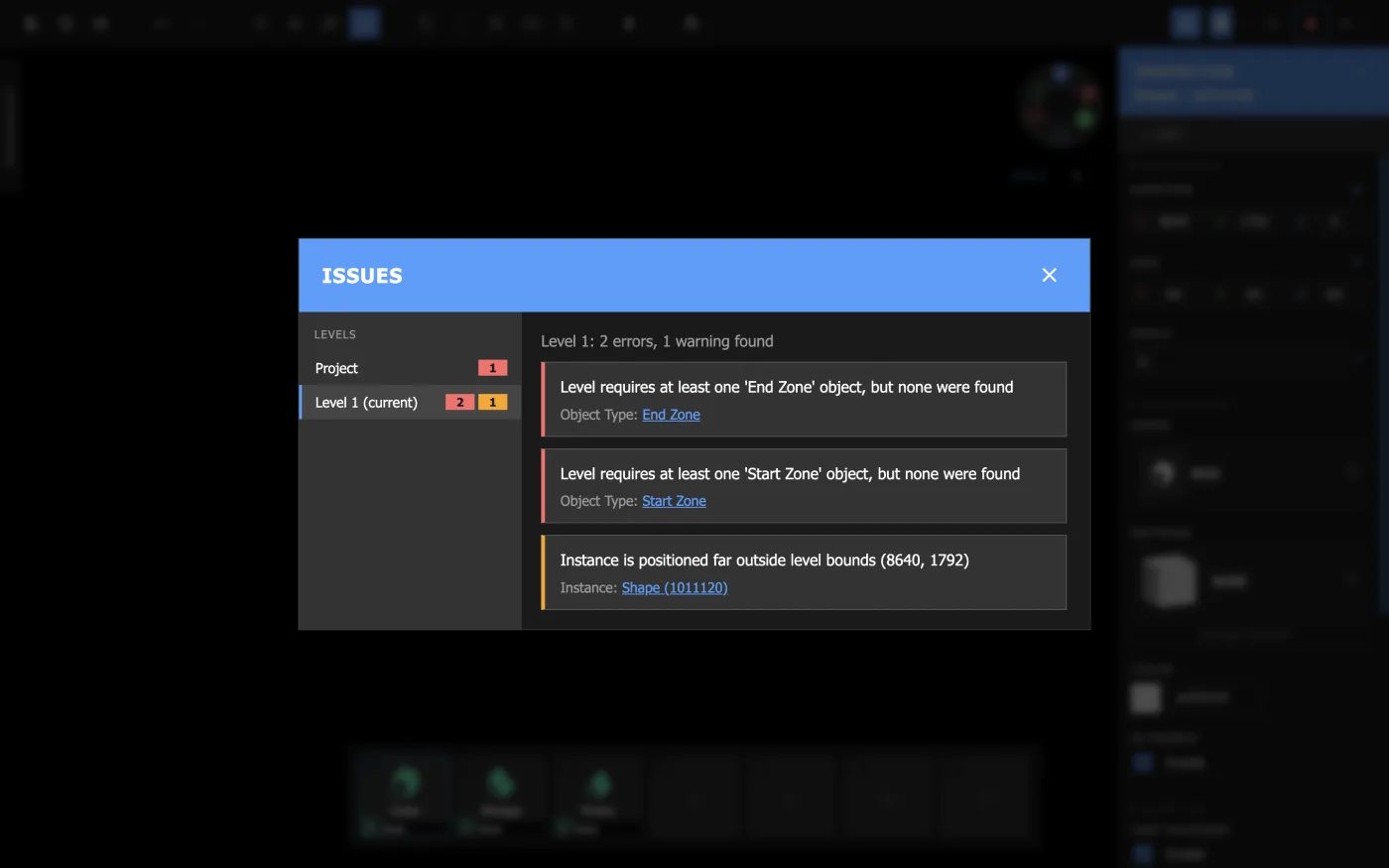
The editor checks your project for problems as you work. If your level contains issues, the  bug button will change color: red if the level contains an error, and yellow if it has warnings.
Click the bug to open the Issues menu to check them in detail.
Many issues come with links that take you straight to the problem, such as the object causing it or the setting that needs changing!
For a list of every error and warning, see Appendix: Errors and Warnings Reference.
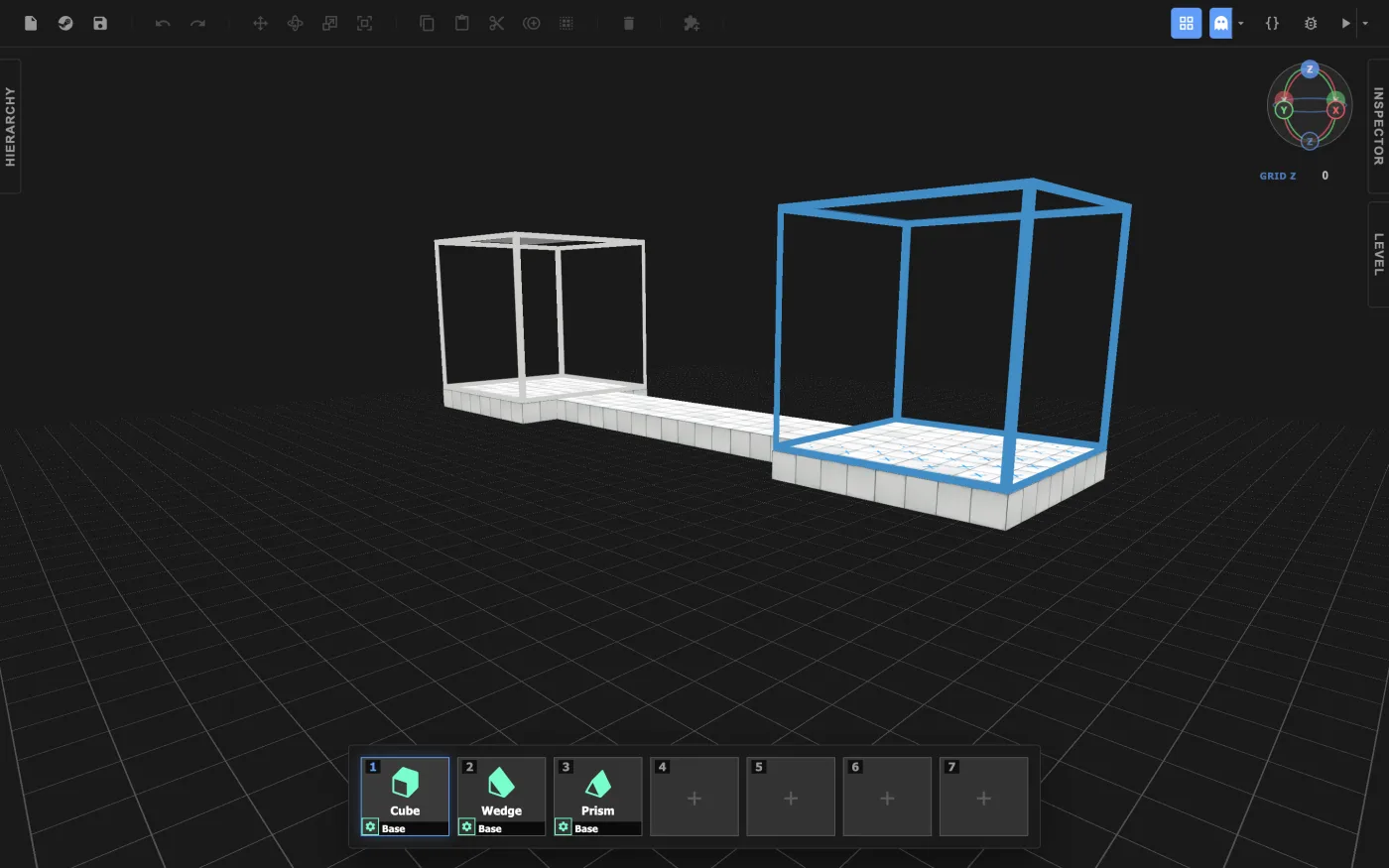
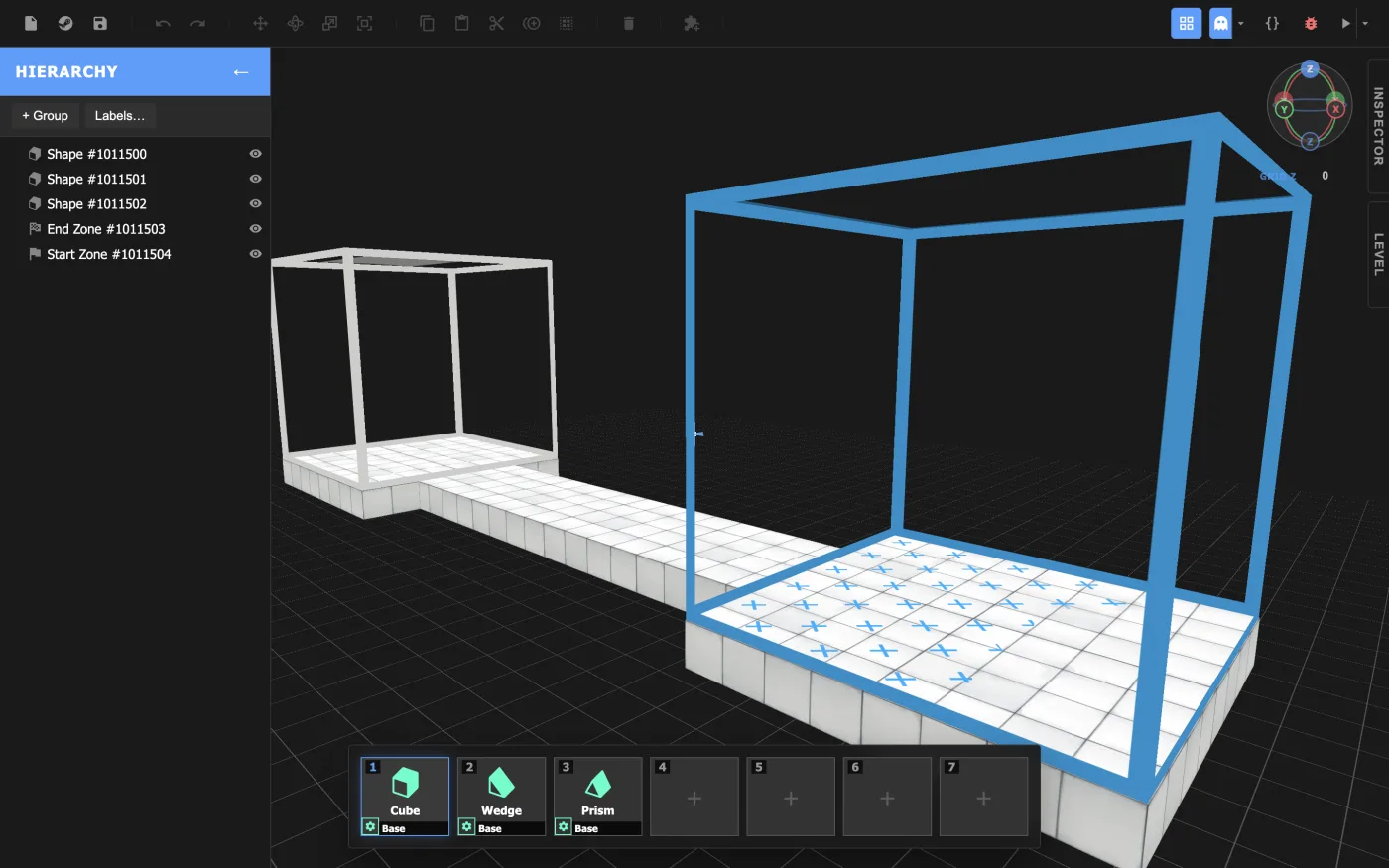
A fresh project starts with a basic level containing one Start Zone, one End Zone, and a platform connecting them. Try building on this level by placing or manipulating objects using the tools we've covered so far.
To play your level, click  Play in the toolbar. Playing your level will automatically save it.
By default, this plays only the current level. The dropdown next to it has more options:
| Option | Description |
|---|---|
| Play Level |
Plays the current level from its Start Zone. |
 Play Project from start / Play Project from start /  Play Project from here Play Project from here |
Play through several levels (Section 6: Expanding a Project). |
 Play Level from camera Play Level from camera |
Starts you wherever the camera is. Handy for testing one part of a level without replaying everything before it. This option won't record a ghost. |
When you're done, press Esc to open the pause menu, then select Level Editor to return to the editor.
The red X button always takes you to the main menu.
Keep large levels manageable with the Hierarchy panel, groups, and labels.
The Hierarchy panel, on the left side of the screen, lists every object in the level. From here, you can:
A group is a set of objects collected under one name. Groups make it easy to select, hide, and organize objects that belong together.
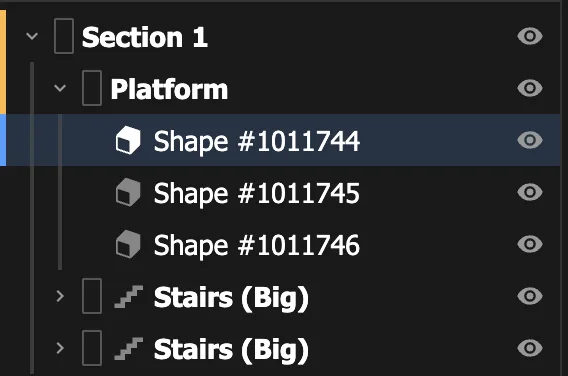
Groups can also contain other groups, so you can organize a large level in layers: a "Tower" group might contain a "Stairs" group and a "Roof" group.
In the Hierarchy panel, clicking on a group will select every object within that group. Collapsing a group will fold its contents out of sight, keeping the list short.
To create a group, select more than one object, then do one of the following:
 Group / ungroup selection in the toolbar.
To ungroup, select all the objects in the group, then do one of the following:
Group / ungroup selection in the toolbar.Clicking on an object that belongs to a group will still only select the one object. You can easily select the group that the current selection belongs to by pressing [. Press ] to step back in.
A label is a tag you can attach to objects. An object can have several labels, and any number of objects can share the same label.
To add a label, select an object and click + Add at the very top of the Inspector. The object's labels appear as colored tags in the Inspector, and as small colored circles next to its name in the Hierarchy panel.
Labels are extremely useful in scripting, as scripts can use them to identify specific objects.
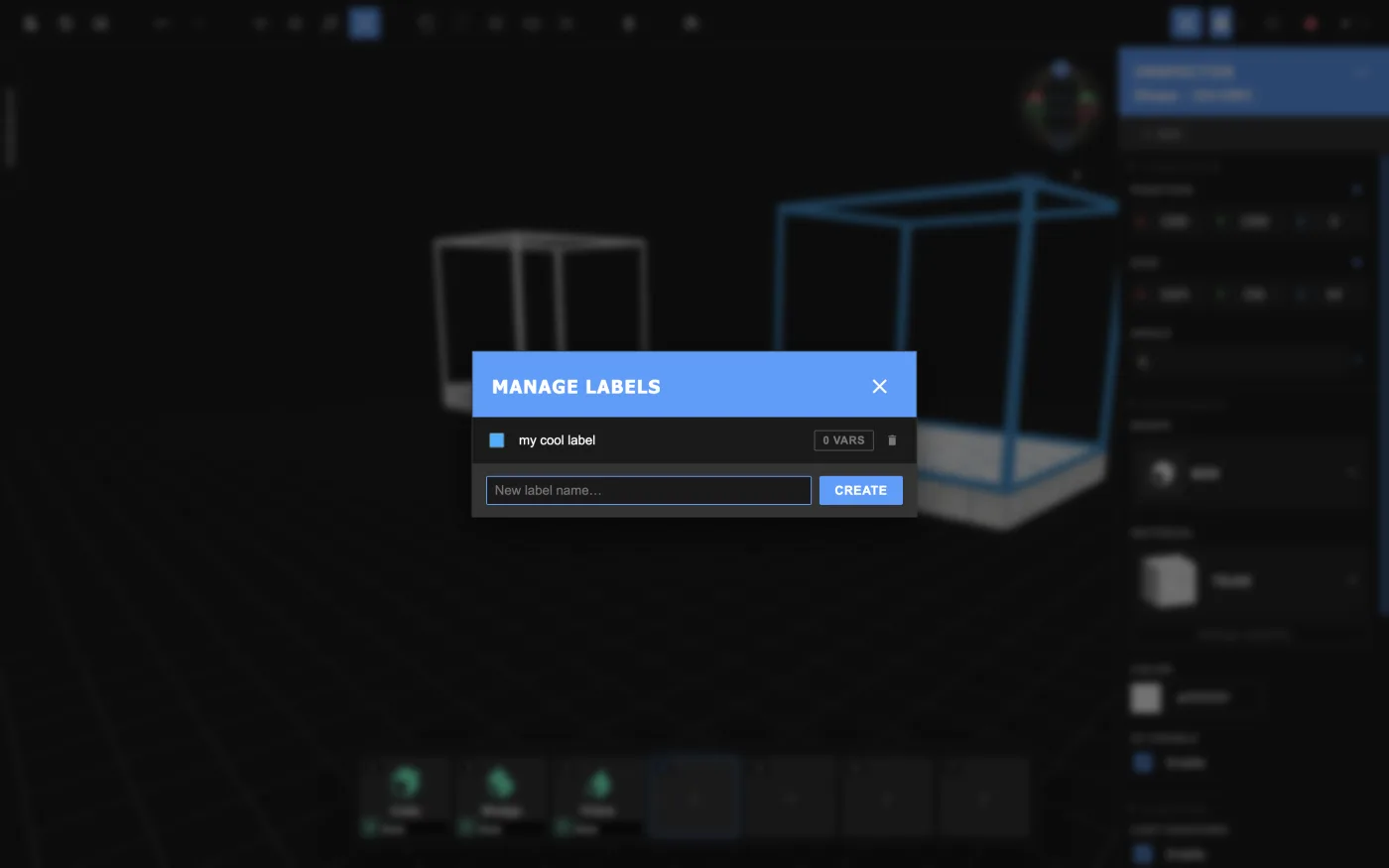
To open the Manage Labels menu, click the Labels button in the Hierarchy panel. You can also click Manage labels... in the dropdown that appears when you add a label in the Inspector.
From this menu, you can create and delete labels, choose each label's color, and set up label variables.
Build something once, then place it as many times as you need.
As your levels grow more complex, you may find yourself building similar structures over and over again: staircases, railings, etc. It can be tedious to construct these by hand each time with simple object presets. Using and defining structure presets will allow you to build complex stages with ease.
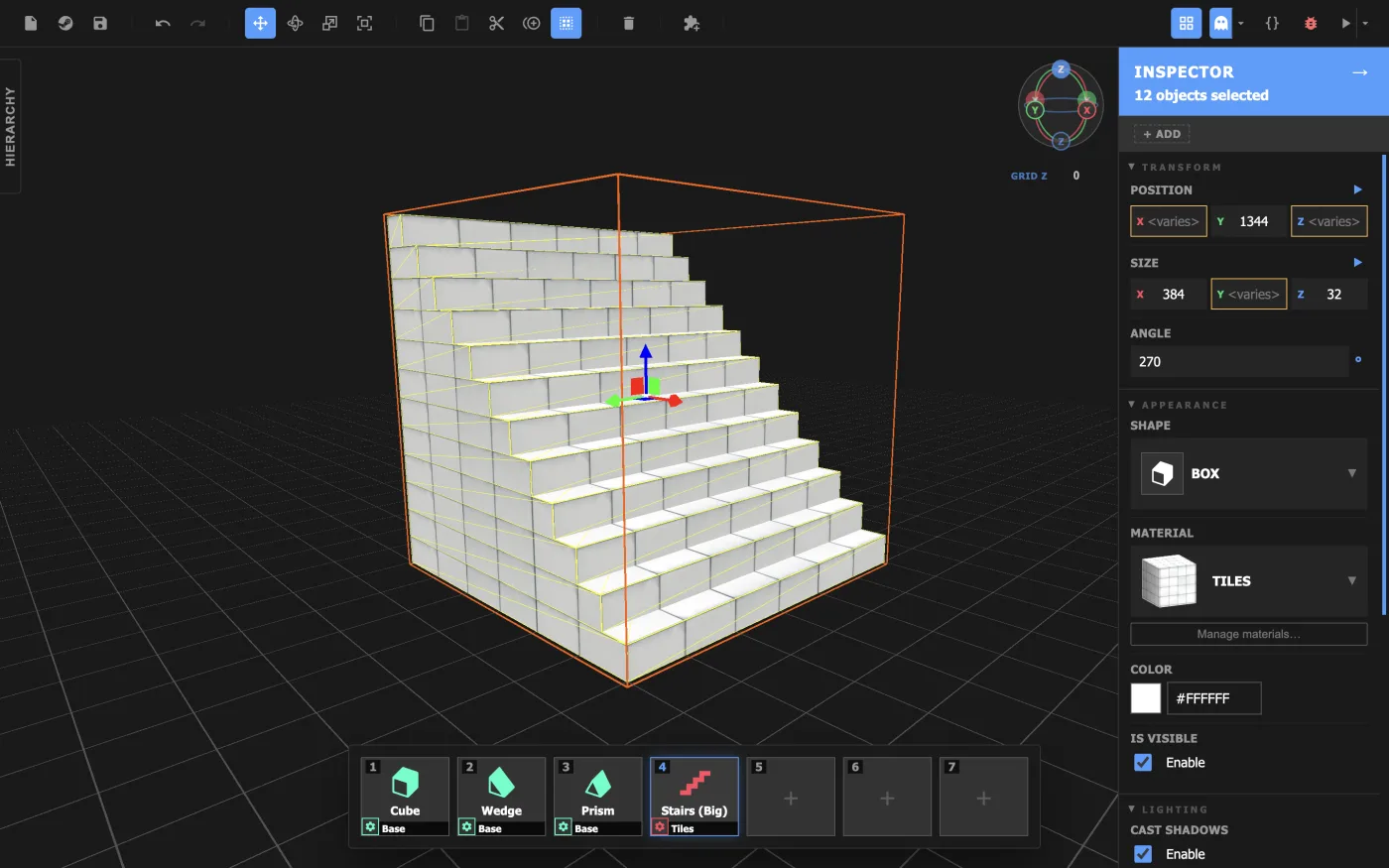
A structure is a preset made of several objects. A structure is placed as an object group. Each of its objects can still be selected, edited, and transformed on its own.
You can create your own structures and add them to the Object Preset menu. Custom structures are shared between levels within a single project.
 Create Custom Structure in the toolbar.
Objects in custom structures don't retain labels or groups.
Your new structure now appears in the Object Preset menu, ready to load into the Inventor Bar.
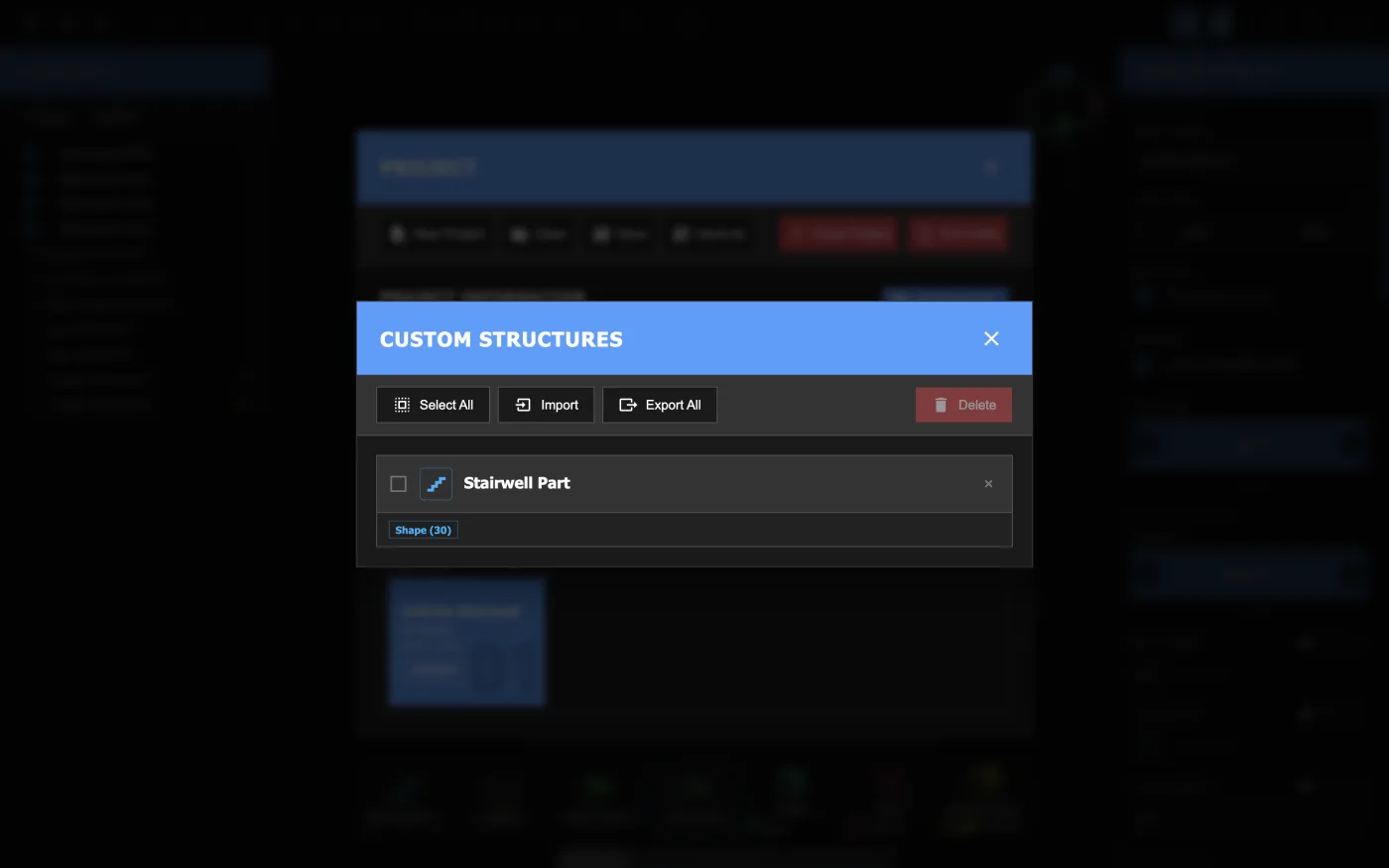
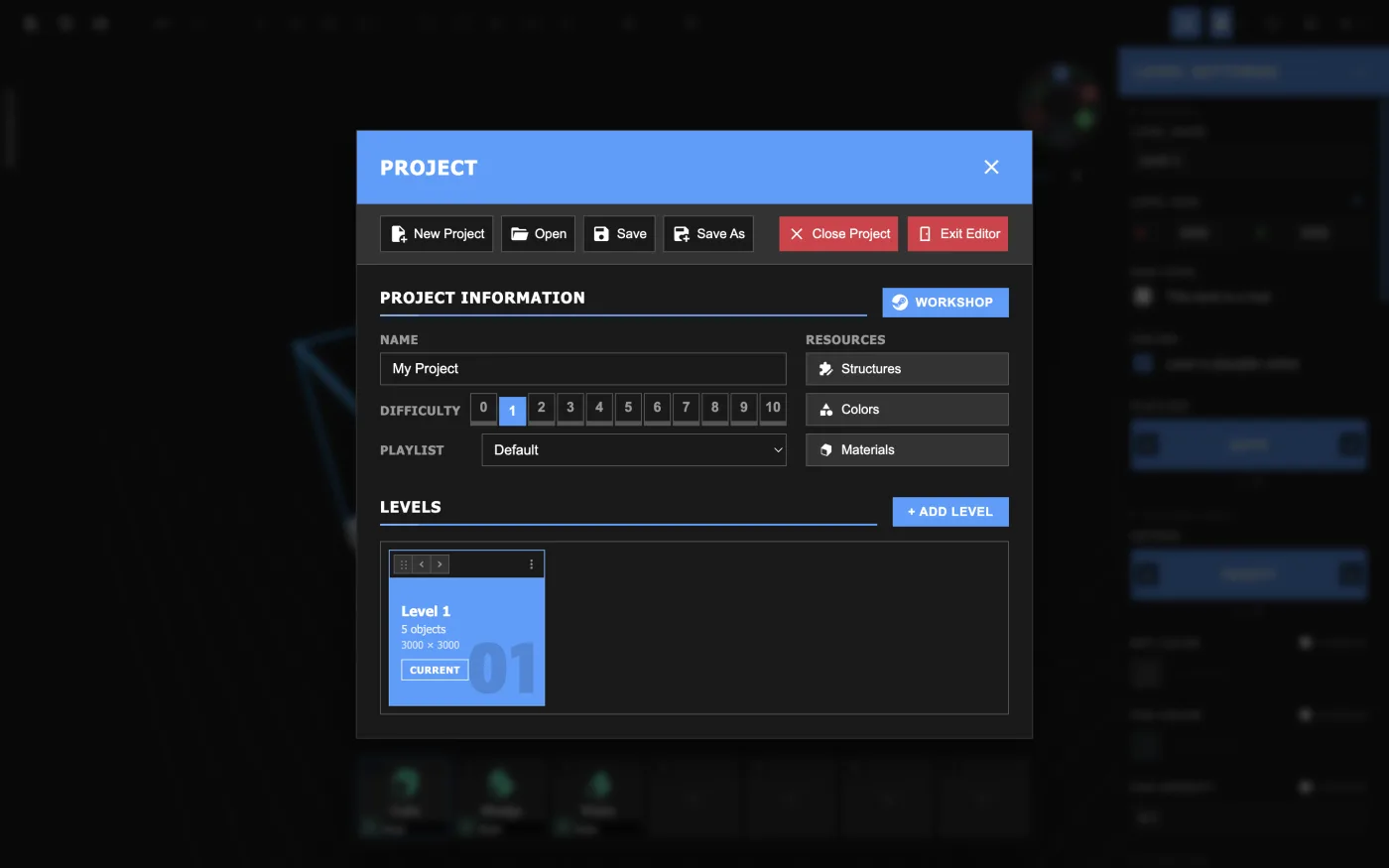
To delete, export, or import the custom structures in your project, open the  Project menu and click Structures under Resources. This opens the Custom Structures menu where you can manage your structures.
Finished building a level? Let's prove it can be completed.
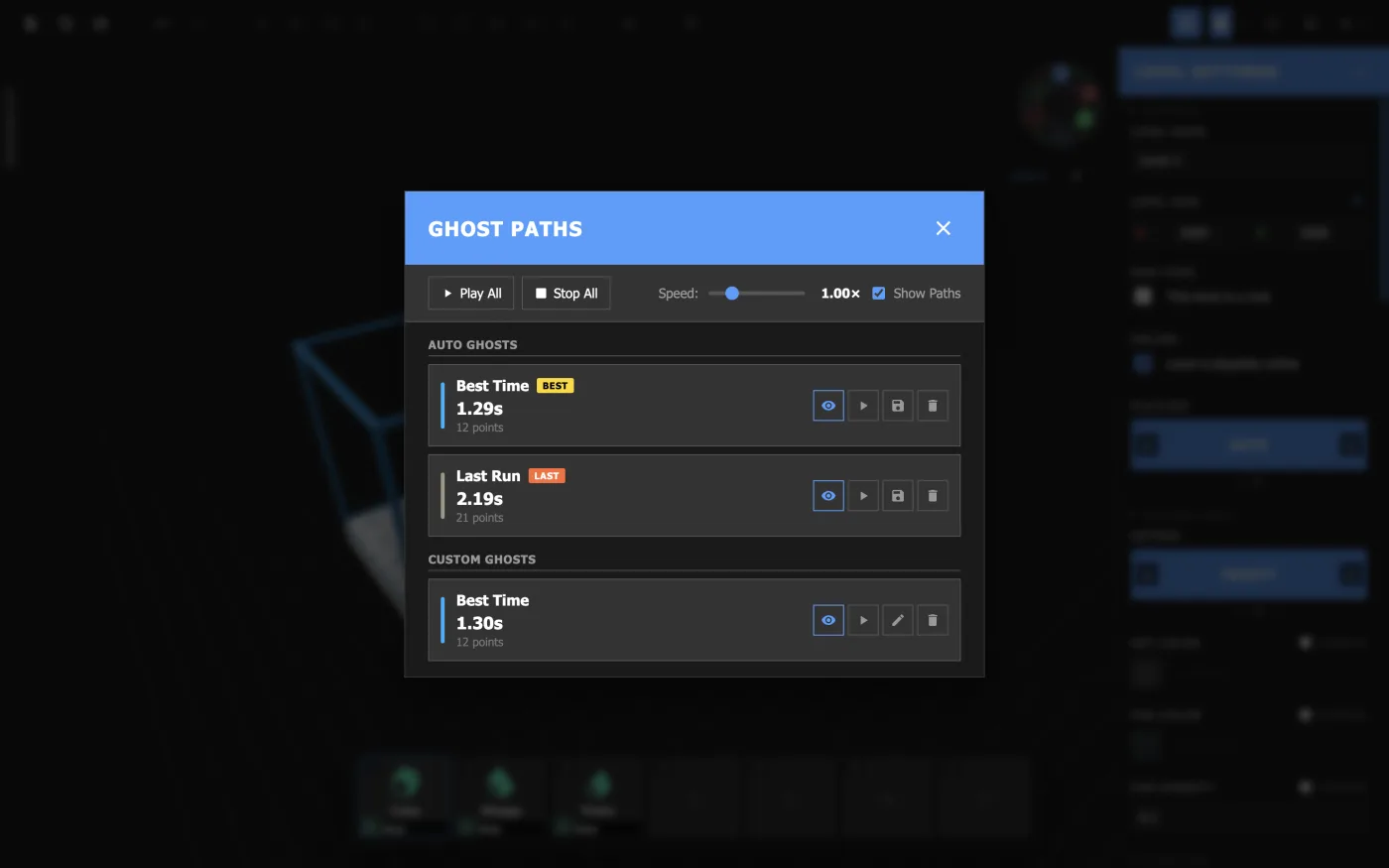
Every time you play a level from start to finish, the editor records your run as a ghost: a replay of exactly how you moved through the level.
Ghosts are how the editor knows your level can be completed. A level is verified when it has at least one ghost that reached an End Zone. Every timed level must be verified before you can publish.
If you change an object in the level after recording a ghost, that ghost becomes obsolete. You'll have to do a fresh run to verify it again.
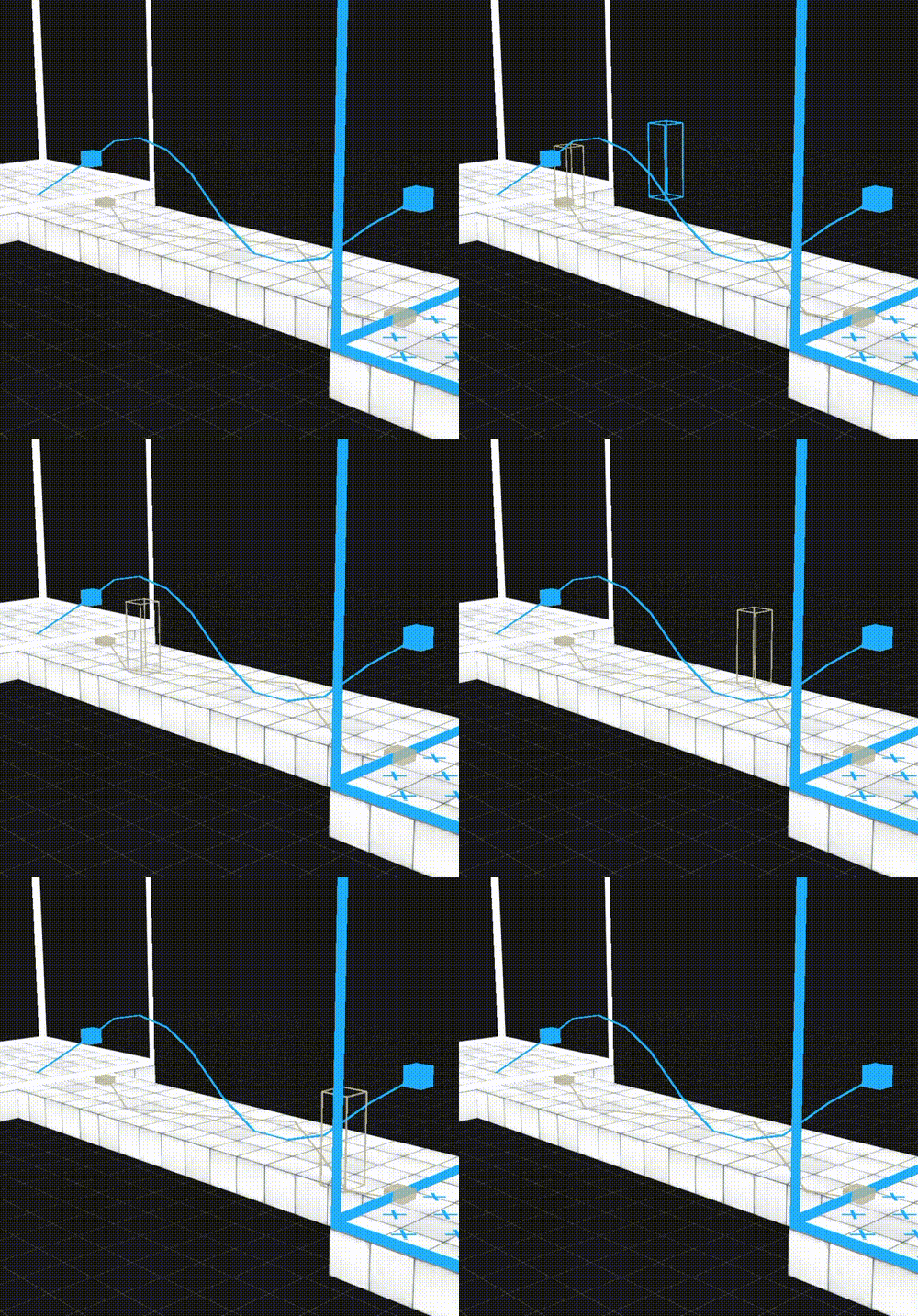
From the toolbar, by clicking Play All Visible Ghosts in the dropdown next to  Toggle Ghost Visibility, you can replay and view ghost paths from the Scene view.
In the same dropdown, choose Open Ghost Paths Manager to manage your ghosts.
From here, you can see how long each run took, your best time, and whether the ghost is obsolete. You can also delete, save, and change the color of ghosts.
By default, the editor only saves the ghost with the best time and the ghost from your last run.
Saving an auto ghost turns it into a custom ghost, which is kept until you delete it.
Runners earn stars for finishing a level quickly. The maximum time for each star can be set from the level settings, under Level Times. Times are set in seconds.
Each star's time must be the same as or shorter than the one before it, or the level will have an error. Star 4 is optional—leave it at 0 and Runners won't see it.
Your ghosts are the best guide for choosing times. Before you publish, you'll be encouraged to set all four times and to have a ghost that beats the fastest one, so you know every star can be earned.
Add more levels and connect them into a level pack.
You can create and organize levels from the Project menu in the toolbar.
By default, the order of your levels is the order they will be played in, unless you connect them differently.
Templates let you use levels as a blueprint for new levels. From the Project menu, you can set a level to act as a template by clicking on the dropdown at the top right of a level.
Levels are linked through Zones. When a Runner reaches an End Zone, they're sent to a Start Zone in another level.
By default, an End Zone leads to the default Start Zone of the next level in the project or (if it's the last level) ends the level pack.
To change where an End Zone leads, select it and set its parameters in the Inspector:
| Parameter | Description |
|---|---|
| Next Level | The level this End Zone leads to. Default follows the project's order. Exit ends the pack. You can also pick any level by name. |
| Arrive At Start Zone | The Zone ID of the Start Zone to link to. Leave it empty for default. |
| Leads To Distance | When Next Level is set to a specific level, how close a Runner has to be before the destination appears. |
A level can have more than one Start Zone, so Runners can arrive at different places depending on which End Zone they came from. Each Start Zone has a Zone ID parameter.
Zone IDs must be unique within the level, and there must be one Start Zone with an empty (default) value.
However you connect your levels, there must be a way to get from the first level to the end of the pack. If there isn't, the Issues menu will show a Project error.
To play through levels the way a Runner would, use the Play dropdown in the toolbar:
Play Project from start starts from the first level. Play Project from here starts from the default Start Zone of the level you're editing.Both follow your End Zones from level to level.
Not every level needs to be a timed challenge. A hub level works more like a passageway: a place Runners pass through or choose their next level from.
To make a level a hub, check This level is a hub in the Level Settings panel. Hub levels have no timer, don't award stars, and don't need to be verified with a ghost before publishing.
Share your level pack on the Steam Workshop.
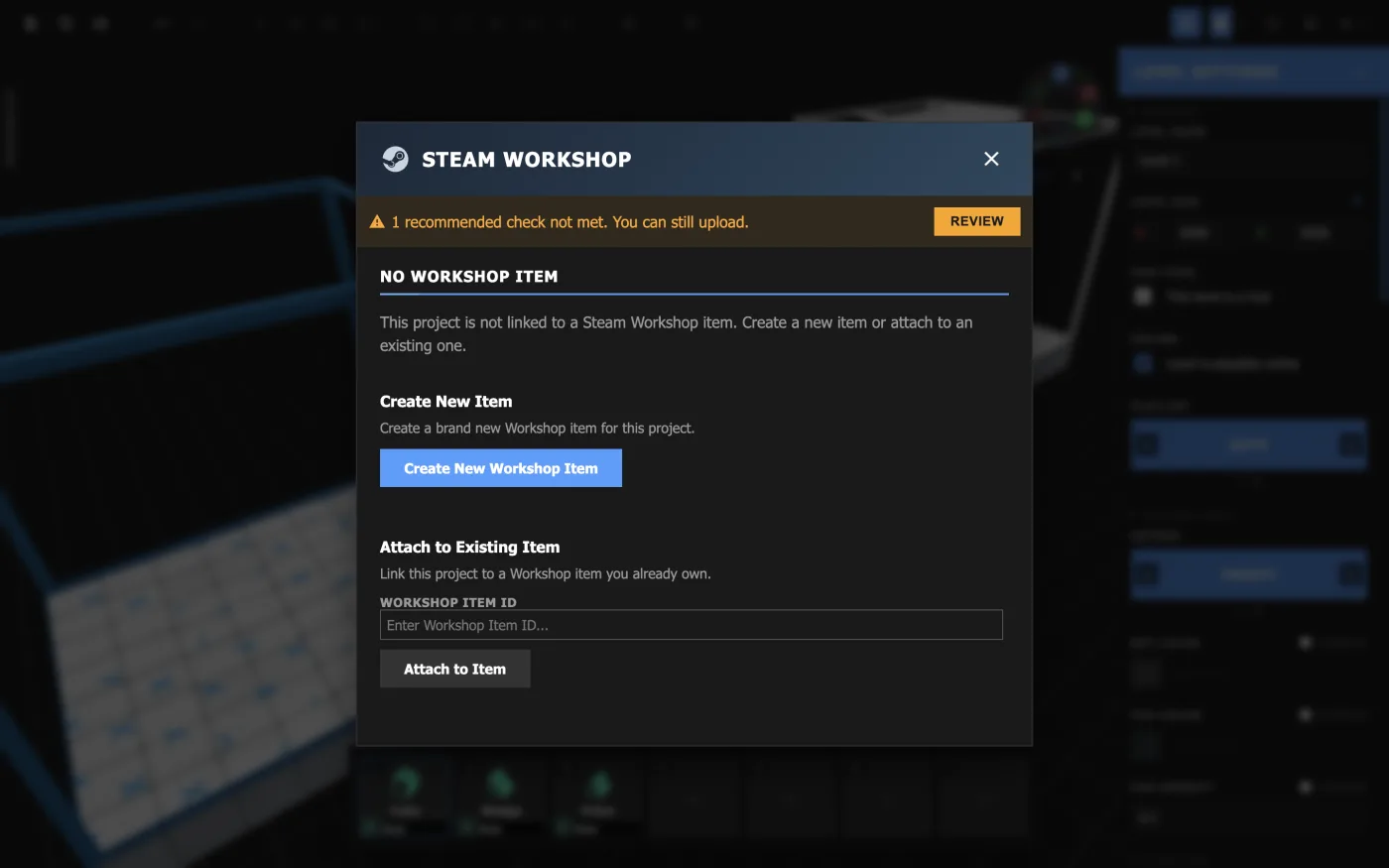
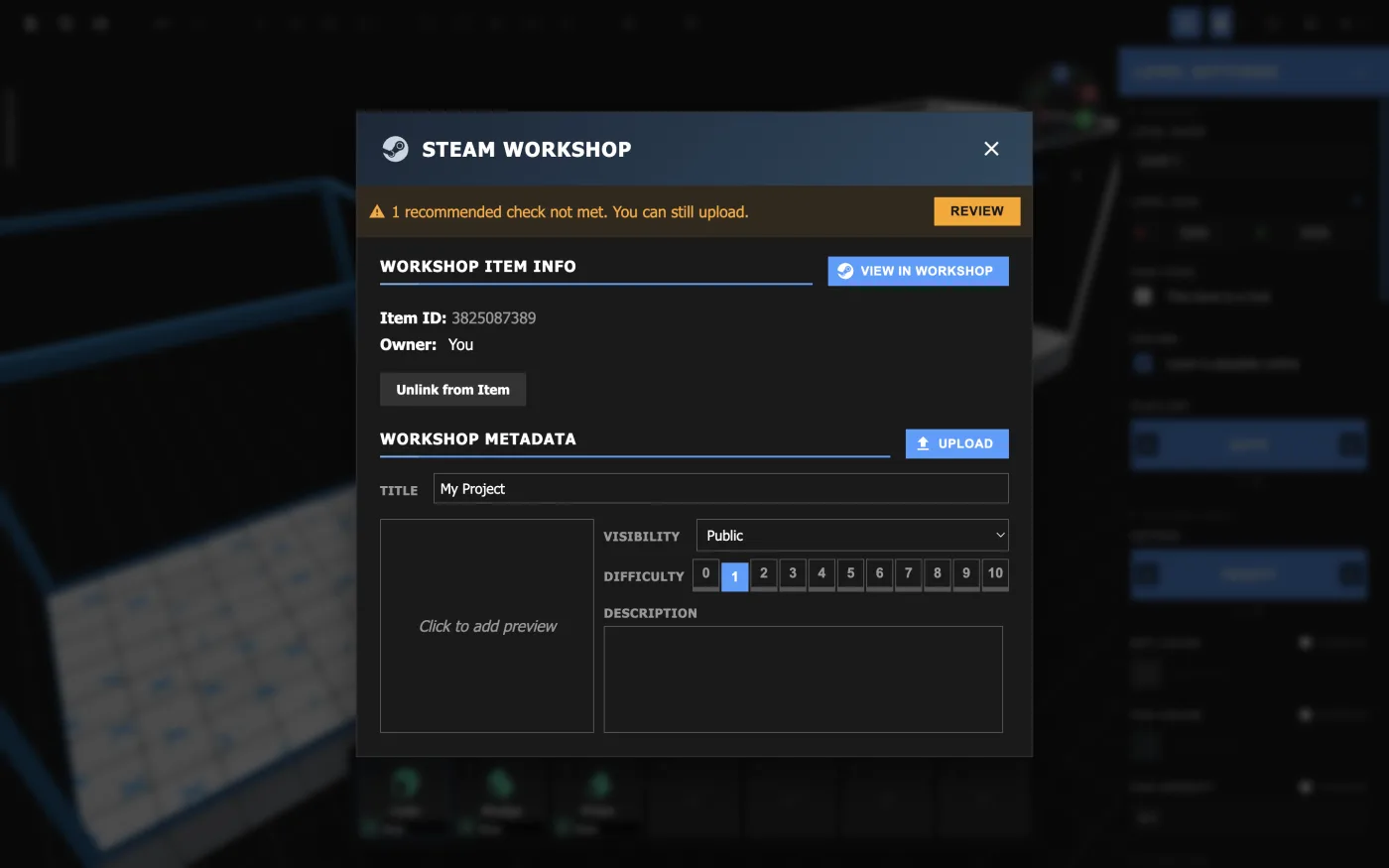
Click  Steam Workshop in the toolbar to open the Steam Workshop menu.
To upload your project, it needs to be linked to a workshop item. If your project isn't linked to one yet, the menu gives you two options:
Once your project is linked, you can unlink it at any time with Unlink from Item.
If your project is linked to a workshop item, the Steam Workshop menu will let you edit its information. Under Workshop Metadata, fill in how your level pack appears on the Steam Workshop:
| Field | Description |
|---|---|
| Title | The name of your level pack. |
| Visibility | Who can see your level pack: Public, Friends Only, Private, or Unlisted. |
| Difficulty | Difficulty rating from 0 to 10. |
| Description | A description of your level pack. |
| Preview Image | The image that will be shown on the Steam Workshop. |
Before you can upload, your project has to pass the Publishing Checklist. If there is a check you're not meeting, you can view this list by clicking on the Review button at the top of the Steam Workshop menu. Clicking Upload will also show this list.
Required checks must pass before you can upload. Recommended checks can be skipped, but they're worth a look.
| Check | Required | Description |
|---|---|---|
| No errors | Yes | No errors in any level, or in the project as a whole (see Section 2: Building a Level > Checking for Issues). |
| Every level verified | Yes | Every level has a ghost that isn't obsolete (see Section 5: Verifying a Level > Ghosts). |
| No warnings | No | No warnings in any level, or in the project as a whole. |
| Star times set | No | All four times are set, and a ghost beats the fastest one (see Section 5: Verifying a Level > Setting Level Times). |
| Preview image | No | Your Steam Workshop item has a preview image. |
When you're ready, click Upload. Once you've checked the Publishing Checklist and added (optional) change notes, your project will be uploaded.
To update your level pack, make your changes and upload again to the same workshop item. Runners get your new version once they update the pack.
You can check your level pack's changelog in the Steam Workshop by clicking View in Workshop. From here, you can also unpublish by deleting the item, which can't be done from the editor.
Most objects have a material, which decides both how a surface looks and how it behaves when a Runner touches it. For example, the Speed Floor preset uses the Speed material, which makes Runners move faster while they stand on it.
To change an object's material, select it and choose a new one from the Material parameter in the Inspector.
For a list of every material, see Appendix: Materials Reference.
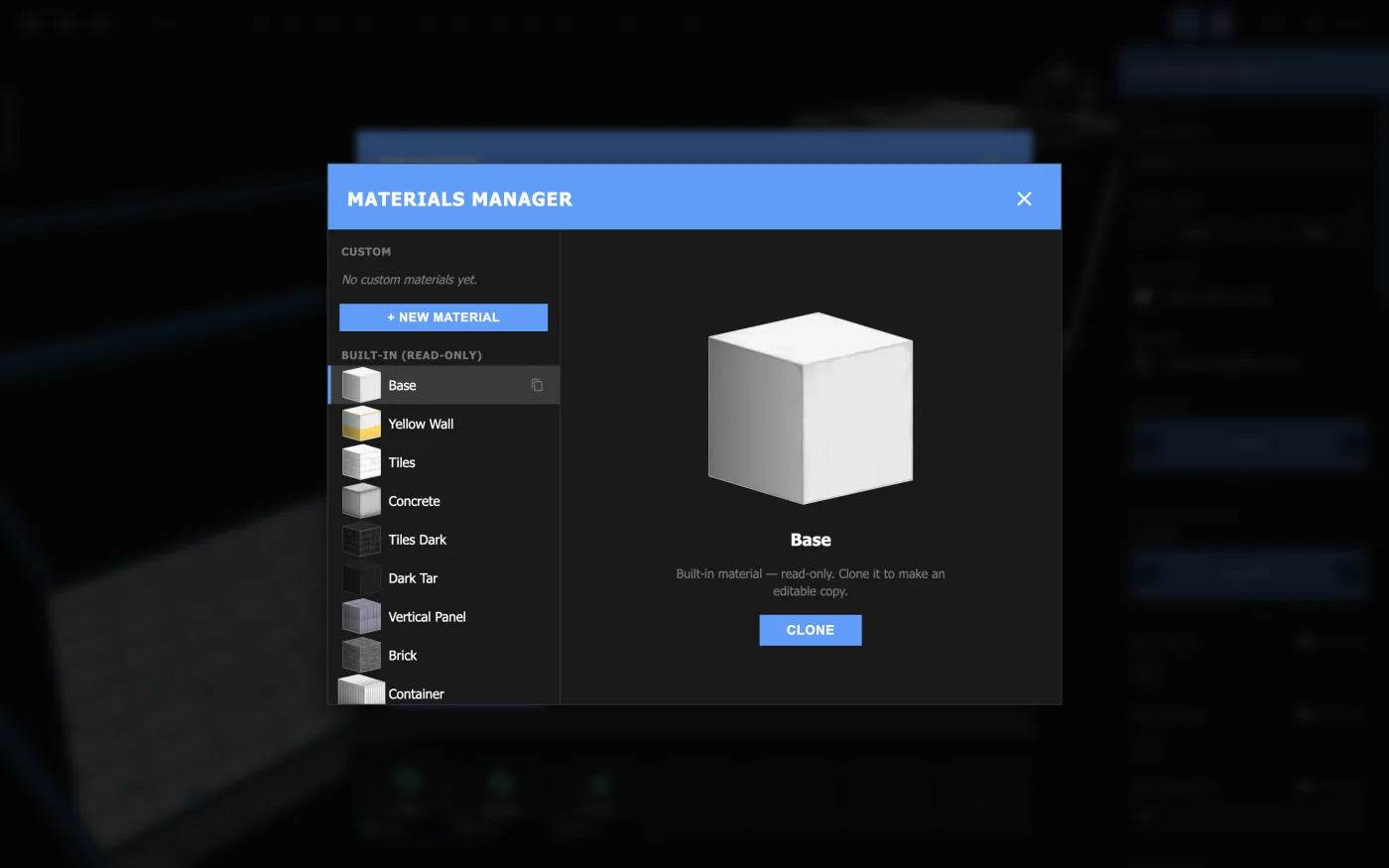
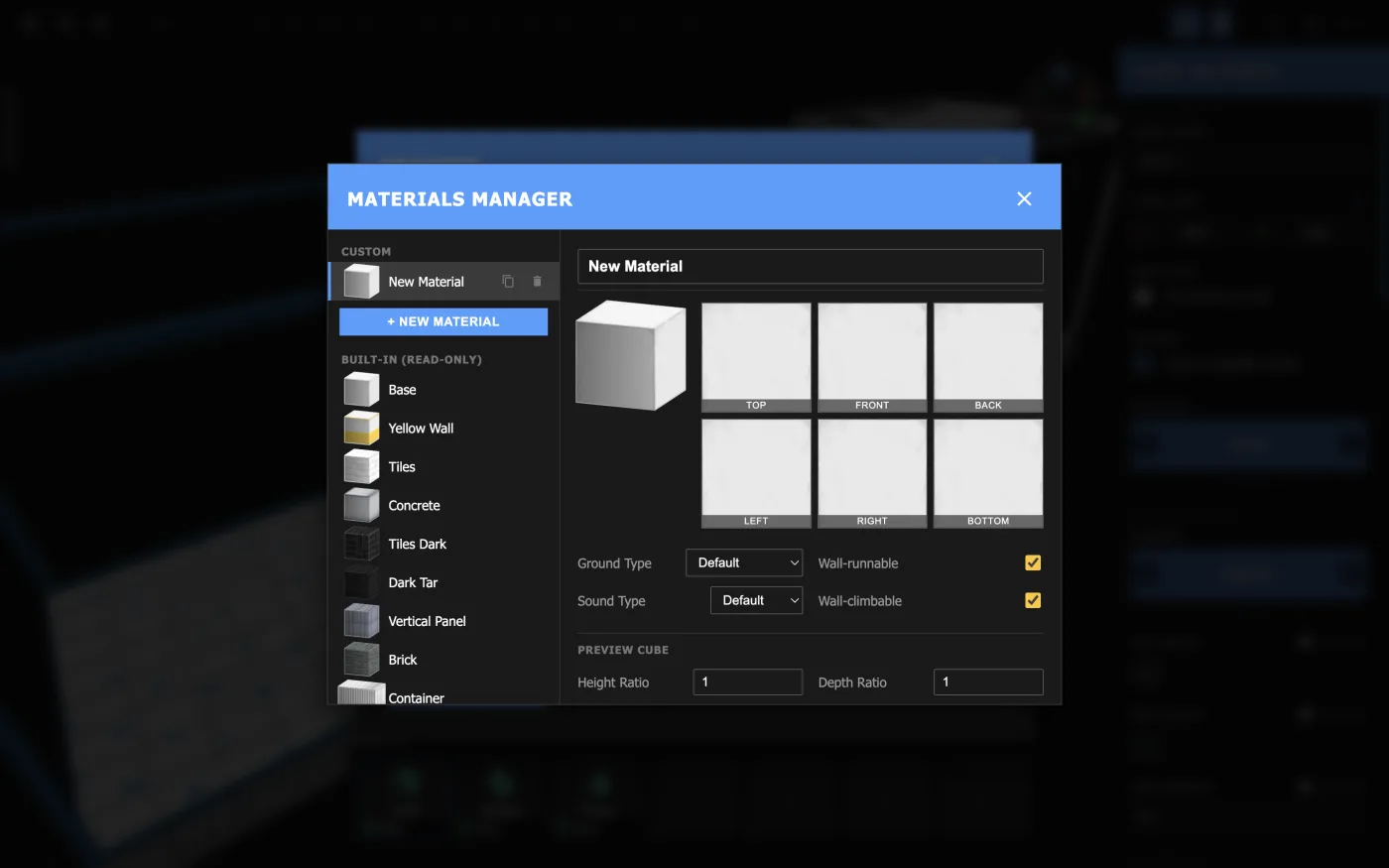
To create your own materials, open the Materials Manager. You can access this menu by clicking Manage materials... under the Material parameter in the Inspector, or by opening the Project menu and clicking Materials under Resources.
For each material you create, you can set:
| Setting | Description |
|---|---|
| Name | The name of the material. |
| Sprites | The image shown on each face, chosen from a list of available sprites. |
| Ground Type | How the surface affects a Runner's movement, such as Slippery, Bounce, or Speed. |
| Sound Type | The sound a Runner's footsteps make on it. |
| Wall-runnable | Whether a Runner can wall-run along it. |
| Wall-climbable | Whether a Runner can climb up it. |
| Preview Cube | How the material is previewed in the editor. |
Material names can be used to reference them from a level script (see Appendix: Scripting Reference > Enums).
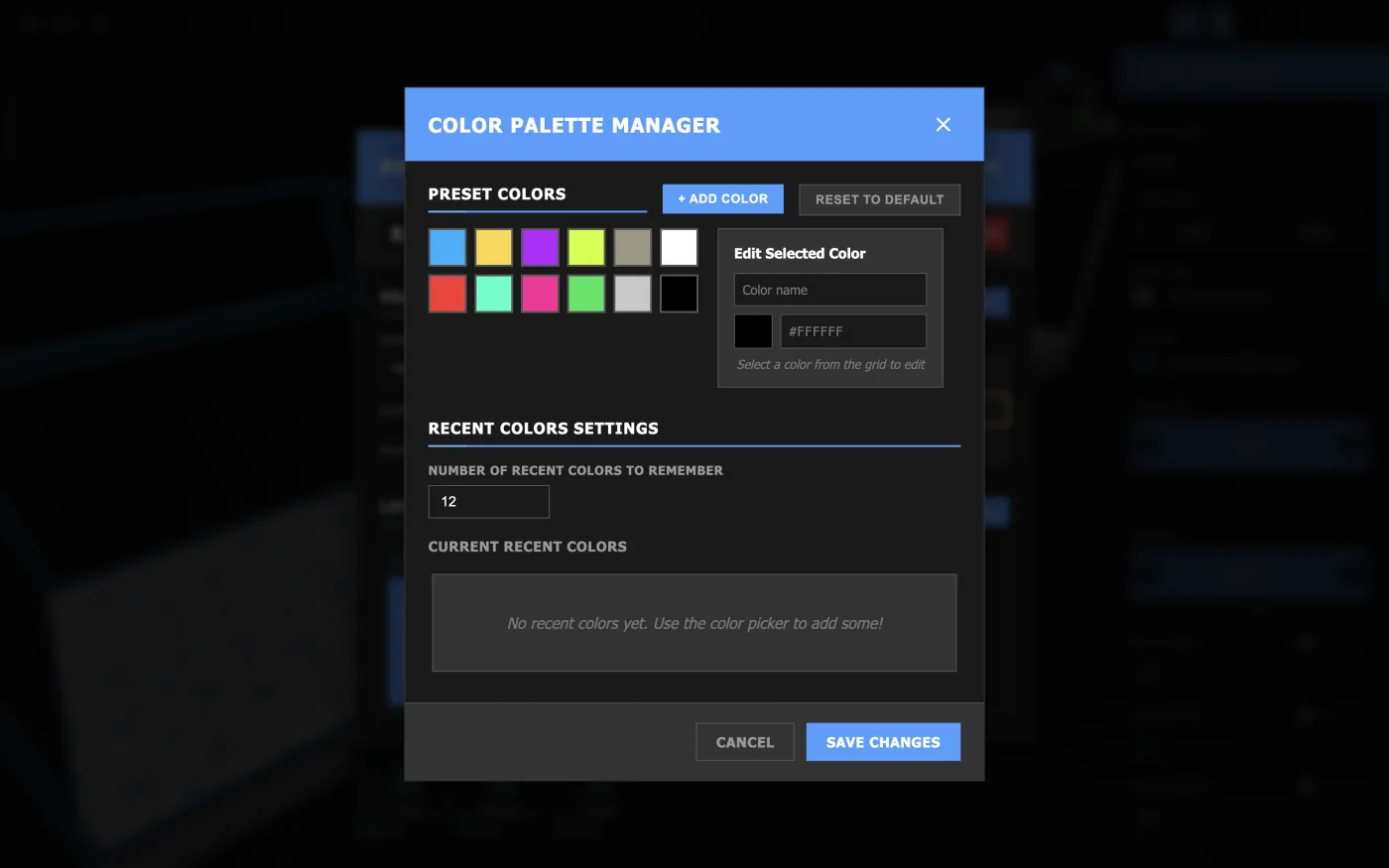
When you edit a color parameter in the Inspector, you can choose a color from your project's color palette. The color palette is optional (you can always pick colors individually) but can be a useful tool for maintaining a unified color scheme throughout your project.
To change the color palette, open the Project menu and click Colors under Resources. Here, you can add, delete, edit, and rename colors.
Changing a palette color doesn't recolor anything already in your level. The palette is only for picking colors.
Color names can be used to reference them from a level script (see Appendix: Scripting Reference > Color).
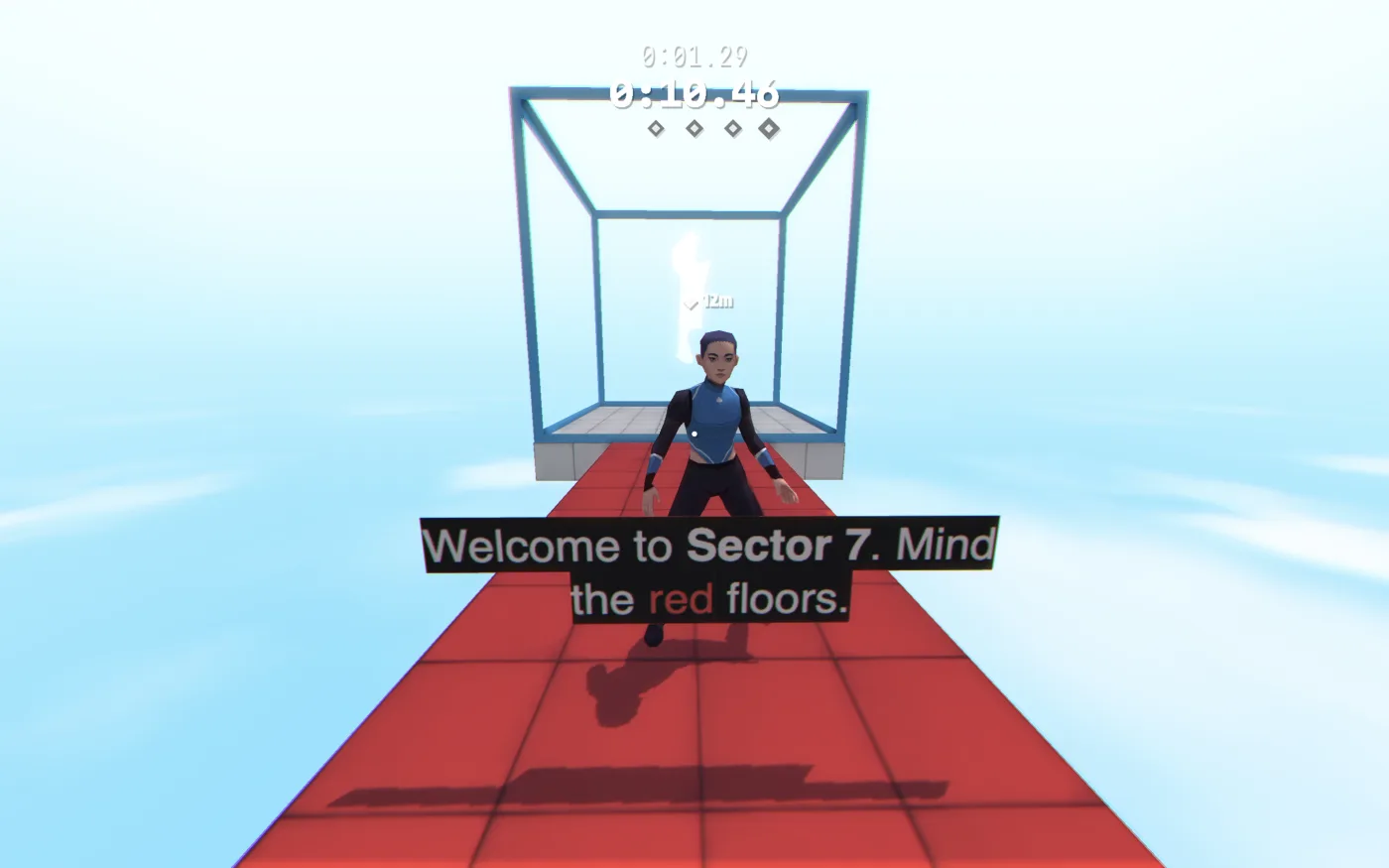
Text objects (the Text and Title presets) can be styled with BBCode-style tags:
[background=#000]Welcome to [b]Sector 7[/b]. Mind the [color=#ff3333]red[/color] floors.[/background]
| Tag | Description |
|---|---|
[b]…[/b] |
Bold. |
[i]…[/i] |
Italic. |
[u]…[/u] |
Underline. |
[s]…[/s] |
Strikethrough. |
[color=#ff0000]…[/color] |
Text color: a hex code like #ff0000, or any HTML color name like red or skyblue. |
[background=#000000]…[/background] |
Text background color: a hex code or a color name. |
[opacity=50]…[/opacity] |
Text opacity from 0 to 100. |
[size=24]…[/size] |
Font size. |
[font=Martian]…[/font] |
Font. Use one of the names from the Font Face parameter. |
[outline=#000000]…[/outline] |
An outline in front of the text, in a hex code or color name. |
[outlineback=#000000]…[/outlineback] |
An outline behind the text, in a hex code or color name. |
[stroke]…[/stroke] |
Only the outline of the letters. |
[linethickness=2]…[/linethickness] |
How thick outlines, strokes, and underlines are. |
[offsetx=10]…[/offsetx] / [offsety=10]…[/offsety] |
Shift the text sideways or up and down, in pixels, or as a percentage of the line height, such as -50%. |
[hide]…[/hide] |
Make the text invisible. |
Tags can be combined: [b][color=#ffd642]Danger[/color][/b]. To show a [ without starting a tag, type \[.
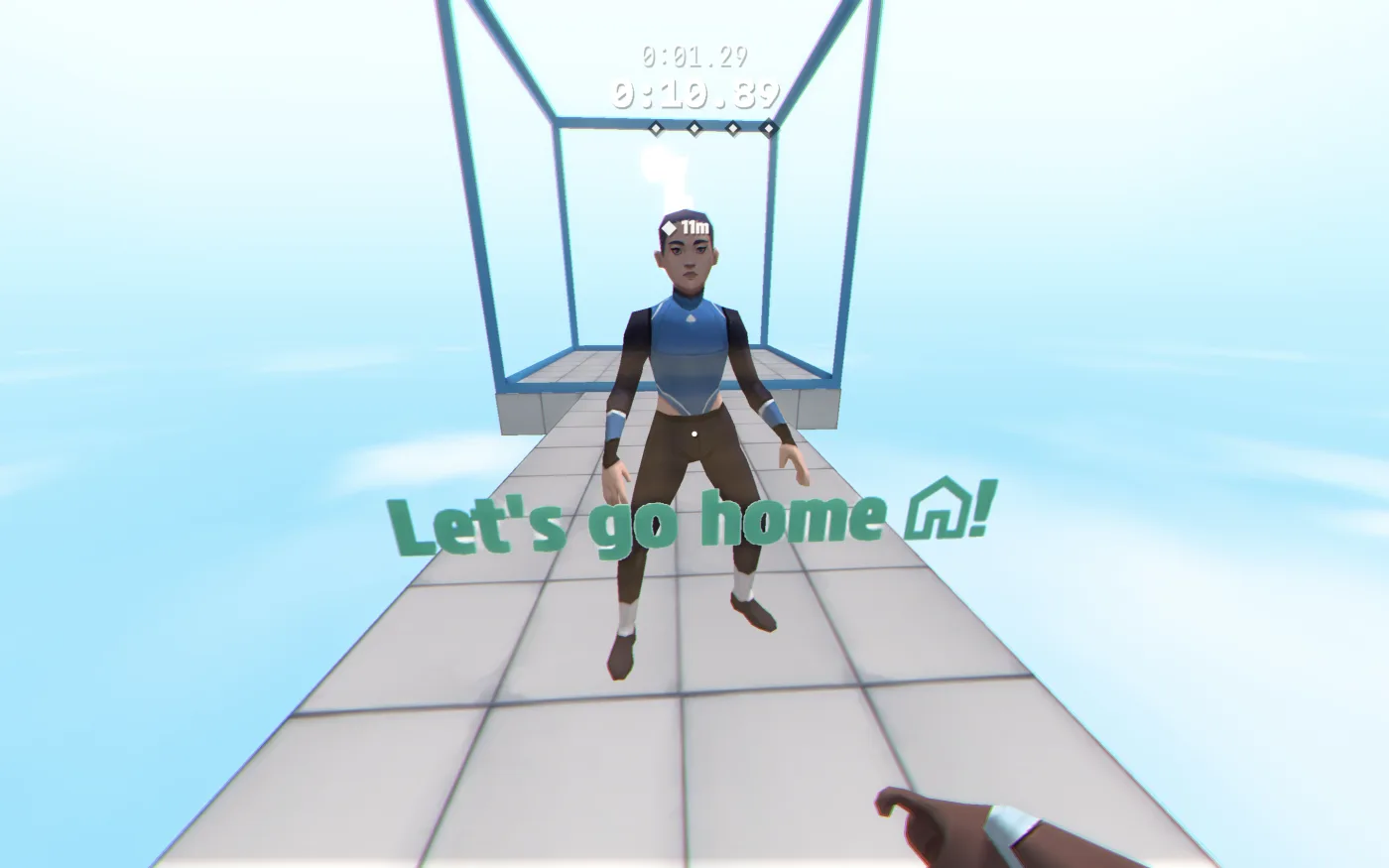
Text can also show the Runner's controls and game icons, using tokens in curly brackets. When the text is shown, each token is replaced with what it stands for:
Press {keybind:jump} to jump. Collect every {icon:coin}!
| Token | Shows |
|---|---|
{icon:name} |
A game icon. See Icons Reference. |
{keybind:action} |
The key or button the Runner uses for an action, such as {keybind:jump}. Changes automatically if they rebind it or switch devices. If an action has more than one binding, add a number to pick one: {keybind:jump:1}. |
{key:code} |
A specific key, such as {key:Space} or {key:KeyE}, whatever the Runner's bindings are. Codes follow the KeyboardEvent code names. |
{key:gamepad:code} |
A specific controller button, by its standard number from 0 to 16 (such as {key:gamepad:0}), or a stick (stickL, stickR). It's shown for the Runner's controller brand. |
{key:touch:code} |
A touch gesture, such as {key:touch:touchTap}. |
{if:device}…{else}…{/if} |
Text that changes with the Runner's device. See Device-Specific Text. |
| Icon | Name | Icon | Name | Icon | Name |
|---|---|---|---|---|---|
 |
achievement |
 |
arrow |
 |
back |
 |
bullet |
 |
burgerMenu |
 |
camera |
 |
close |
 |
coin |
 |
diamond |
 |
edit |
 |
emote |
 |
exit |
 |
eye |
 |
flag |
 |
flagMirror |
 |
heart |
 |
home |
 |
homeflag |
 |
homeflagMirror |
 |
homenoflag |
 |
interactTouchBtn |
 |
jumpTouchBtn |
 |
menu |
 |
musicNote |
 |
noflag |
 |
pause |
 |
play |
 |
poki |
 |
questionMark |
 |
reset |
 |
restart |
 |
rewardedVideo |
 |
secret |
 |
skin |
 |
star |
 |
starFilled |
 |
steam |
 |
touchJoystick |
{if:…} shows different text depending on how the Runner is playing:
{if:touch}Tap{else}Press {keybind:jump}{/if} to jump
The devices you can check for are kbm (keyboard and mouse), gamepad, touch, mobile, tablet, desktop, and deck (Steam Deck). To check for more than one, separate them with commas: {if:mobile,tablet}. To check for anything but a device, put ! in front: {if:!touch}.
You can add more cases with {elif:device}, and a fallback with {else}. Both are optional. {if:…} can't be placed inside another {if:…}.
You can change how a level is lit by adjusting its Environment and Lighting settings.
| Group | Setting | Description |
|---|---|---|
| Environment | Skybox | Changes the style of the sky as well as the level's overall lighting. |
| Sky color | The color of the sky. | |
| Fog color | The color distant objects fade into. | |
| Fog density | How thick the fog is. | |
| Lighting | Lighting | Toggles shading and light objects. |
| Sun | The main light in the level. You can set its color and intensity, its direction (dir sets which way it shines from, and up sets how high it is in the sky), and whether it casts shadows. | |
| Sky light | A soft light from the sky that fills in the shadows the sun leaves behind. You can set its color and intensity. |
Many of these settings follow the skybox: when you choose a skybox, they change to match it. To set one yourself, check Override next to it. It then keeps your value, even if you change the skybox later.
Choose your skybox first, then fine-tune the lighting. Changing the skybox afterward resets every setting you haven't overridden.
The Lighting – Advanced settings let you fine-tune shadows, indoor lighting, and light bouncing off surfaces. For the full list, see Appendix: Level Settings Reference.
The Light object adds a point light to your level: a light that shines in every direction from a single point, like a bare light bulb.
| Parameter | Description |
|---|---|
| Color | The light's color. |
| Intensity | How bright the light is, from 0 to 10. |
| Range | How far the light reaches. |
| Full-Brightness Radius | The light stays at full brightness out to this distance, then fades out toward the range. A larger radius gives a softer light. |
| Cast Shadows | Objects block this light. |
| Shadows From Moving Objects | The Runner and moving objects also cast shadows from this light. This costs more performance. |
| Probes Only | The light only adds bounce light, with no direct light or shadows of its own. |
| On | Whether the light is on. |
When a light is selected, two rings show its range and full-brightness radius. You can drag a ring to change these values.
A level script lets you add custom interactions and behaviors: moving platforms, talking models, a button to open a locked door, whatever else you can imagine.
Each level has one script, written in c3script, a small language based on JavaScript. This guide covers the basics.
For everything a script can access, see Appendix: Scripting Reference.
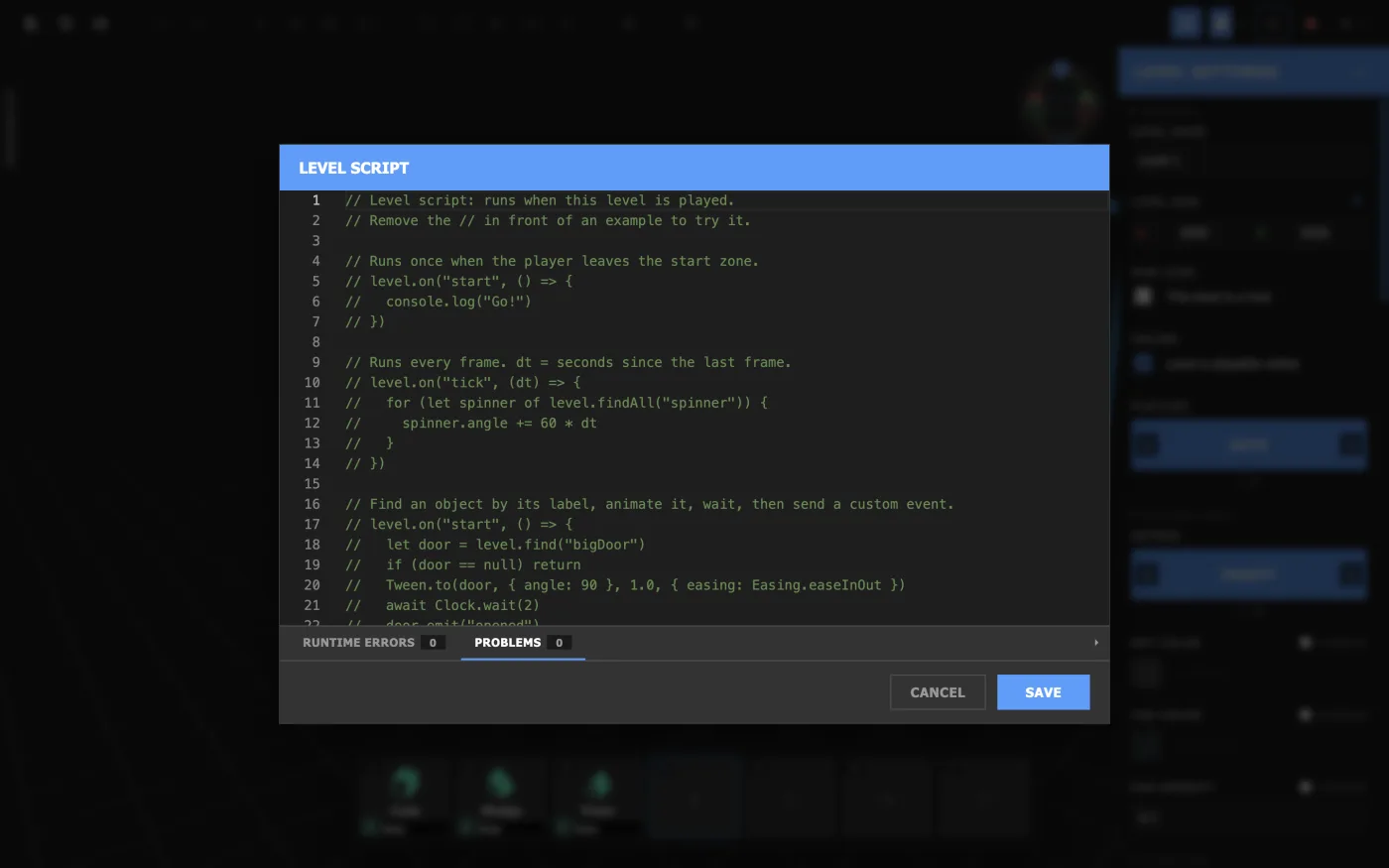
To open the Level Script Editor, click  Edit Level Script in the toolbar, or Edit Level Script… under Scripting in the Level Settings panel.
Keep in mind, the editor is full of hints. You can always...
level. to see everything level has.Make sure to always click Save to keep your changes.
Pressing Esc or clicking outside the editor closes it without saving.
This section gives a quick look at what c3script looks like, so you can read a script or write a small one when you need to. If you already know JavaScript, see Appendix: Scripting Reference > c3script and JavaScript instead.
In a line, after // is a note for people reading the script. It's ignored when the script runs.
// This line does nothingA variable is a name that holds a value. Create one with let, or with const if it should never change.
const INTERVAL = 2;
let lives = 3;
lives = lives - 1;    // lives is now 2
Values can be numbers (3, 0.5), text in quotes ("hello"), true or false, or null (no value).
A function is a reusable block of code. It can optionally take values in and give one back with return.
function double(n) {
  return n * 2;
}

double(4);    // 8
There's also a shorter way to write a function, called an arrow function. This is the form you'll usually pass to events:
let double = (n) => {
  return n * 2;
};
When an arrow function only returns one value, you can leave out the { } and the return:
let double = (n) => n * 2;print is a built-in function that writes a message to the console, which is the easiest way to check what your script is doing. To see the console, open the developer tools with Ctrl+Shift+I (Cmd+Option+I on Mac) and go to the Console tab.
print("lives left: " + lives);A c3script object groups values under names and is defined using curly brackets { }.
let point = { x: 10, y: 20 };
point.x = 15;     // changes point's 'x' value
point["x"] = 15;  // this works too
print(point.x); // prints "15" to the consoleAn array is a list of values defined using square brackets [ ]. They start count at 0.
let colors = ["red", "green", "blue"];
print(colors[0]);     // prints "red" to the console
print(colors.length); // prints "3" to the consoleif runs code only when something is true. else runs when it isn't.
if (lives == 0) {
  print("Game over");
} else {
  print("Keep going");
}
= sets a variable. == checks whether two values are equal.
A for...of loop runs the same code for each item in an array.
let colors = ["red", "green", "blue"];
for (let color of colors) {
  print(color); // prints "red", then "green", then "blue"
}
A counting for loop repeats code a set number of times. It sets up a counter, checks a condition before each pass, and updates the counter after each one. i++ adds 1 to i.
for (let i = 0; i < 3; i++) {
  print(i); // prints 0, then 1, then 2
}
A while loop repeats code for as long as a condition is true:
let height = 0;
while (height < 100) {
  height = height + 30;
}
print(height); // prints "120"
break leaves a loop early, and continue skips straight to its next pass.
Make sure a loop's condition becomes false at some point. A loop that never ends is stopped with a runtime error.
A script can find game objects by their labels (see Section 3: Organizing a Level > Labels). level.find returns the first game object with a label, and level.findAll returns an array of every one.
let door = level.find("exit");
let lamps = level.findAll("lamp");

door.isVisible = false;A script runs from top to bottom once, when the level loads. To make something happen later, you listen for an event and give it a function to run.
level.on("start", () => {
  print("The Runner left the start zone");
});
Game objects have events too:
let plate = level.find("button");

plate.on("pressed", () => {
  door.open();
});await pauses a function. Combined with Clock.wait, it lets you wait a number of seconds:
plate.on("pressed", () => {
  door.open();
  await Clock.wait(3);
  door.close();
});Labels can be used to give objects custom parameters via label variables. You can create label variables from the Manage Labels menu and access their values from the script with the format <object>.labels.<label>.<variable name>.
For a list of every type of label variable you can create, see Appendix: Scripting Reference > Game Objects > Label Variables.
Script errors show up at the bottom of the Level Script Editor, and in the Issues menu (see Section 2: Building a Level > Checking for Issues). There are two kinds:
Marking a runtime error as resolved makes that level's ghosts obsolete (see Section 5: Verifying a Level > Ghosts), so you'll need to play the level through again to verify it.
| Icon | Button | Description |
|---|---|---|
|
Project | Opens the Project menu, for switching levels, creating levels, and managing resources (see Section 6: Expanding a Project > Creating a New Level). |
|
Steam Workshop | Opens the Steam Workshop menu (see Section 7: Publishing). |
 |
Save Project | Saves the project. |
|
Undo | Undoes the last change. |
 |
Redo | Redoes the last undone change. |
 |
Move Tool | Moves the selection along an axis (see Section 2: Building a Level > Transforming Objects). |
 |
Rotate Tool | Rotates the selection around an axis. |
 |
Scale Tool | Resizes the selection from its center. |
|
Box Scale Tool | Resizes the selection from one side. |
|
Copy | Copies the selection (see Section 2: Building a Level > Cut, Copy, Duplicate, Paste). |
|
Paste | Pastes what you cut or copied, in place. |
|
Cut | Removes the selection so you can paste it. |
|
Duplicate | Copies and pastes the selection in one step. |
|
Group / ungroup selection | Groups the selection, or ungroups it (see Section 3: Organizing a Level > Groups). |
|
Delete | Removes the selection. |
|
Create Custom Structure | Makes a custom structure from the selection (see Section 4: Creating Structures > Custom Structures). |
|
Toggle Grid Snapping | Turns grid snapping on or off (see Section 2: Building a Level > Grid). |
|
Toggle Ghost Visibility | Shows or hides ghosts (see Section 5: Verifying a Level > Ghosts). Its dropdown has the options below. |
|
↳ Play All Visible Ghosts | Plays back every visible ghost. |
 |
↳ Stop All Ghosts | Stops every ghost that's playing. |
|
↳ Open Ghost Paths Manager | Opens the Ghost Paths Manager. |
|
Edit Level Script | Opens the Level Script Editor (see Advanced: Scripting > Level Script Editor). |
|
Issues | Opens the Issues menu. Its label shows how many issues the project has (see Section 2: Building a Level > Checking for Issues). |
|
Play | Plays the current level (see Section 2: Building a Level > Playtesting). Its dropdown has the options below. |
|
↳ Play Level | Plays the current level from its Start Zone. |
|
↳ Play Project from here | Plays through the project, starting from the current level. |
|
↳ Play Project from start | Plays through the project from the first level. |
|
↳ Play Level from camera | Plays the current level, starting from the camera's position. |
| Action | Shortcut |
|---|---|
| Cut / Copy / Paste | Ctrl/⌘+X / Ctrl/⌘+C / Ctrl/⌘+V |
| Duplicate | Ctrl/⌘+D |
| Delete | Backspace or Delete |
| Undo | Ctrl/⌘+Z |
| Redo | Ctrl/⌘+Y or Ctrl/⌘+Shift+Z |
| Save project | Ctrl/⌘+S |
| Select | Click |
| Add to selection | Shift+click |
| Select an area | Drag across empty space |
| Group / Ungroup | Ctrl/⌘+G / Ctrl/⌘+Shift+G |
| Select the containing group / Step back in | [ / ] |
| Rename | F2 |
| Cycle transform tools | Tab |
| Choose an Inventor Bar slot | 1–7 |
| Rotate while placing | Scroll, or hold Option/Alt and move the mouse |
| Ignore grid snapping | Hold Shift |
| Mirror box scaling | Hold Option/Alt |
| Play (current play mode) | F5 |
| Play Project from start | Shift+F5 |
| Action | Shortcut |
|---|---|
| Move forward / left / backward / right | WASD |
| Move down / up | Q / E |
| Move faster | Hold Shift |
| Zoom | Scroll |
| Pan up and down | Ctrl/⌘+scroll |
| Pan left and right | Ctrl/⌘+Shift+scroll |
| Pan freely | Ctrl/⌘+middle-click drag |
| Orbit | Middle-click drag, Shift+scroll, or drag the axis sphere |
| Look straight down an axis | Click an axis button on the axis sphere |
| Focus on the selection | F |
| Fly mode | Move while orbiting, or press Shift+F |
| Leave fly mode | Let go of the mouse button (when entered while orbiting), or click, press Shift+F, or press Esc (when entered with Shift+F) |
Camera speed and rotation speed can be changed in the level settings, under Editor.
Settings that can be overridden follow the skybox until you check Override. After that, they keep the value you set, even if you change the skybox.
| Setting | Type | Description |
|---|---|---|
| Level Name | Text | The level's name. |
| Level Size | Width, height (1–100000) | The level's size. Objects far outside it get a warning. |
| Playlist | Choice | The background music: Auto, Default, Desert, Void, OvO, Main Menu, Capture the Flag, or Tutorial. |
| Hub Level | Checkbox | Makes the level an untimed hub: no timer, no star times, and no ghost recording (see Section 6: Expanding a Project > Hub Levels). |
| Online | Checkbox | Whether the level can be played online. On by default. |
| Setting | Type | Description |
|---|---|---|
| Skybox | Choice | The sky: Frosty, Night Sky, Deep Blue, Cloudy, Desert, White, Black, Snow Storm, Blue Storm, Foggy White, Red Sky, Cursed, or None. |
| Sky Color | Color (Override) | The sky's tint. |
| Fog Color | Color (Override) | The color distant objects fade into. |
| Fog Density | Number, 0–1 (Override) | How thick the fog is. |
| Setting | Type | Description |
|---|---|---|
| Lighting | Checkbox | Turns on the sun, sky light, shadows and Light objects. Levels made before lighting existed start with this off. |
| Sun Shadows | Checkbox | Whether the sun casts shadows. |
| Sun Color | Color (Override) | The sun's color. |
| Sun Intensity | Number, 0–3 (Override) | How bright the sun is. |
| Sun Direction | Two angles (Override) | Where the sun sits around the level (0 = +X, 90 = +Y), and how high it is above the horizon. |
| Sky Light Color | Color (Override) | The color of the soft light from the whole sky. |
| Sky Light Intensity | Number, 0–3 (Override) | How bright the sky light is. |
| Setting | Type | Description |
|---|---|---|
| Shadow Softness | Number, 0–10 (Override) | How soft shadow edges are. |
| Ground Bounce Color | Color (Override) | Light coming up from below the horizon. |
| Indoor Exposure | Checkbox | Brightens the view under a roof, like a camera adjusting when you walk inside. |
| Indoor Light Color | Color (Override) | The color of light indoors. |
| Indoor Light Intensity | Number, 0–3 (Override) | How bright it is indoors. |
| Sun Seen From Indoors | Number, 0–2 (Override) | Below 1 dims the outdoors seen through a doorway; above 1 brightens it. |
| Bounce Light | Checkbox | Light bouncing off lit surfaces into shaded rooms. |
| Bounce Strength | Number, 0–3 (Override) | How strong the bounce light is. |
| Setting | Type | Description |
|---|---|---|
| Star 1–Star 4 | Number (seconds) | The time to beat for each star. Star 4 is optional (see Section 5: Verifying a Level > Setting Level Times). |
| Setting | Type | Description |
|---|---|---|
| Grid Size | X, Y, Z (1–200) | The spacing of the grid. |
| Snap to Grid | Checkbox | Turns grid snapping on or off. |
| Angle Snap | Angle, 0–90 | How many degrees rotation snaps to. |
| Background Color | Color | The editor's background color. |
| Grid Color | Color | The grid's color. |
| Show Orbit Target | Checkbox | Shows the orbit target crosshair. |
| Orbit Target Color | Color | The orbit target's color. |
| Camera Speed | Number, 50–1000 | How fast the camera moves. |
| Rotation Speed | Number, 0.1–5 | How fast the camera turns in fly mode. |
| Setting | Type | Description |
|---|---|---|
| Edit Level Script… | Button | Opens the Level Script Editor (see Advanced: Scripting > Level Script Editor). |
Every preset in the Object Preset menu, by category. Presets with a variable parameter show a cog in the Inventor Bar (see Section 2: Building a Level > Variable Parameters).
Basic shapes. Each one is a Shape object with the Base material.
| Preset | Description | Variable parameter |
|---|---|---|
| Cube | A box. | Material |
| Wedge | A ramp. | Material |
| Prism | A triangular prism. | Material |
| Pyramid | A pyramid. | Material |
| Corner Out | An outside corner of a slope. | Material |
| Corner In | An inside corner of a slope. | Material |
Shapes with a preset size, color and material.
| Preset | Description | Variable parameter |
|---|---|---|
| Wall | A plain wall (Base material). | — |
| Yellow Wall | A wall with the Yellow Wall material. | — |
| Tiled Floor | A floor with the Tiles material. | — |
| Bounce Pad | A floor that bounces Runners into the air (Bounce material). | — |
| Speed Floor | A floor that speeds Runners up (Speed material). | — |
| Plank | A thin wooden plank. | Color |
| Metal Grate | A thin see-through grate. | — |
| Container | A shipping container. | Color |
| Vent Pipe | A vent pipe. | — |
| Power Box | A power box. | — |
| Cardboard Box | A small box (Box material). | Color |
Objects with special behaviors. For their parameters in scripts, see Appendix: Scripting Reference > Game Objects.
| Preset | Description | Variable parameter |
|---|---|---|
| Start Zone | Where Runners spawn. Every level needs at least one (see Section 6: Expanding a Project > Multiple Start Zones). | — |
| End Zone | Where Runners finish the level. Every level needs at least one (see Section 6: Expanding a Project > How Levels Connect). | — |
| Door | A door that Runners can open. | Color |
| Scatter | A shape that scatters apart until a Runner gets close, or until a script triggers it. | Material |
| Secret | A hidden collectible: a Crystal or a Coin. A level can have at most one. | Secret Type |
| Inspectable | Shows text when a Runner is nearby. | Inspect Text |
| Pressure Plate | Activates when a Runner steps on it. | — |
| Trigger | An invisible area that activates when a Runner enters it. | — |
| Death Zone | An invisible area that kills a Runner who enters it. | — |
| Light | A point light (see Advanced: Environment and Lighting > Light Object). | — |
| Sound Source | Plays a sound. | Sound |
| Checkpoint | Saves a Runner's progress when they reach it. | Checkpoint ID |
| Overlap Confirmer | An invisible area that activates when a Runner stays inside it for a set time. | — |
Decorative 3D models.
| Preset | Description | Variable parameter |
|---|---|---|
| Traffic Cone | A traffic cone. | Color |
| Broken Concrete Pillar | A broken concrete pillar. | — |
| CCTV Camera | A security camera. | — |
| Cable | A hanging cable. | — |
| Pipe | A pipe. | — |
| Pole | A pole. | — |
| Edge Tarp | A tarp hanging over an edge. | Color |
| Corner Tarp | A tarp hanging over a corner. | Color |
| Snowman | A snowman. | — |
| Railing | A railing. | — |
| Wire Mesh | A wire mesh fence. | — |
| Character Mannequin | A character that can play animations and emotes. | — |
| Cardboard Box | A cardboard box model. Unlike the Objects preset, it's a 3D model, not a shape. | — |
| Grass | A patch of grass. | — |
| Rocks | A pile of rocks. | — |
| Trash | Scattered trash. | — |
| Trash Bag | A trash bag. | — |
Flat objects placed on surfaces.
| Preset | Description | Variable parameter |
|---|---|---|
| Text | Text (see Advanced: Text Styling). | Text |
| Title | Larger text. | Text |
| Tag | A sticker or graffiti image. | Tag |
| Stripes | A tiled stripe pattern. | Color |
| Arrows | A tiled arrow pattern. | Color |
| Crosses | A tiled cross pattern. | Color |
Presets made of several objects (see Section 4: Creating Structures).
| Preset | Description | Variable parameter |
|---|---|---|
| Corner Railing | Two railings meeting at a corner. | — |
| Corner Wall | Two walls meeting at a corner. | Material |
| Corner WireMesh | Two wire mesh fences meeting at a corner. | — |
| Rounded Corner (Surf) | Three ramps that turn a 90° corner in a smooth curve. | Material |
| Sharp Corner (Surf) | Two ramps joined by a Corner In, turning a sharp 90° corner. | Material |
| Stairs (Big) | A large staircase. | Material |
| Stairs (Medium) | A medium staircase. | Material |
| Stairs (Small) | A small staircase. | Material |
| Triple Railing | Three railings in a row. | — |
| Triple WireMesh | Three wire mesh fences in a row. | — |
| Wall + Railing | A simple railing between two broken walls. | Material |
| Wall Jump Section | A gap between two platforms, with two walls on either side. | Material |
| Crane | A construction crane. | — |
| Speed Floor + Bounce Pad | A Speed Floor leading into a Bounce Pad. | Material |
| Vault Jump Section | A tall block to climb onto from a low platform, then a jump across a gap to a platform at the same height. | Material |
Every built-in material. All of them can be wall-run along and climbed. To make your own, see Advanced: Materials > Custom Materials.
| Material | Ground Type | Sound Type | Notes |
|---|---|---|---|
| Base | Default | Default | The default material. |
| Yellow Wall | Default | Default | |
| Tiles | Default | Default | |
| Concrete | Default | Default | |
| Tiles Dark | Default | Default | |
| Dark Tar | Default | Default | |
| Vertical Panel | Default | Default | |
| Brick | Default | Default | |
| Container | Default | Metal | |
| Metal Grate | Default | Metal | Has see-through gaps. |
| Metal Grid | Default | Metal | Has see-through gaps. |
| Bounce | Bounce | Default | Bounces Runners into the air. |
| Speed | Speed | Default | Speeds Runners up. |
| Wood Planks | Default | Default | |
| Sandstone Bricks | Default | Default | |
| Sandstone | Default | Default | |
| Ice | Slippery | Default | Runners slide on it. |
| Plank | Default | Default | |
| Vent Pipe | Default | Metal | |
| Box | Default | Default | |
| Glass | Default | Default | Transparent. |
| Power Box | Default | Metal | |
| Solid Color | Default | Default | A single flat color. |
Every issue the editor can report, as it appears in the Issues menu.
| Message | Description |
|---|---|
Level requires at least one '<object>' object, but none were found |
The level has no Start Zone, or no End Zone. Every level needs at least one of each. |
Level can have at most one '<object>' object, but <n> were found |
The level has more than one Secret. |
<n> Star time (<a>s) must be greater than <n+1> Star time (<b>s) |
The star times are out of order. Each star's time must be the same as or shorter than the one before it. Not checked on hub levels. |
| An end zone's "Next Level" points to a level that no longer exists in the project. | An End Zone leads to a level that was deleted. |
<n> start zones share Zone ID "<id>"; give each start zone a unique Zone ID. |
Two or more Start Zones in the level have the same Zone ID. If the shared ID is empty, the message says "an empty Zone ID (default spawn)" instead. |
| No default start zone: leave one start zone's Zone ID empty so the level has a spawn point. | Every Start Zone in the level has a Zone ID. One must be left empty. |
An end zone that exits the pack can't target start zone "<id>". |
An End Zone is set to Exit, but also has an Arrive At Start Zone. |
An end zone on the last level targets start zone "<id>" but leads to the end of the pack. |
An End Zone on the last level leads to the end of the pack, but has an Arrive At Start Zone. |
An end zone targets start zone "<id>" but "<level>" has no start zone with that Zone ID. |
The level an End Zone leads to has no Start Zone with that Zone ID. |
A '<object>' uses a material that no longer exists. |
An object uses a custom material that was deleted. Until it's fixed, the object shows the default material. |
Label "<label>" variable "<variable>" defaults to a material that no longer exists. |
A material label variable's default is a deleted material. |
A '<object>' sets label variable "<label>.<variable>" to a material that no longer exists. |
An object's value for a material label variable is a deleted material. |
Script error: <message> |
The level script has a mistake that stops it from running. |
Runtime error (line <n>): <message> |
The level script hit an error during your last playthrough (see Advanced: Scripting > Script Errors). |
These are listed under Project in the Issues menu.
| Message | Description |
|---|---|
| The pack can't be completed: no end zone reachable from the start of the pack leads to the end of the pack. | Following every End Zone from the first level, there's no way to reach the end of the pack. |
| Message | Description |
|---|---|
| This level was made before lighting and plays unlit. Turn lighting on in Level Settings → Lighting. | The level was saved before the lighting system existed. |
Start zone "<id>" is not targeted by any end zone. |
No End Zone in the project leads to this Start Zone's Zone ID. Start Zones with an empty Zone ID are never flagged. |
Label "<label>" defines variables but its name is not an identifier… |
A label with variables has spaces or symbols in its name, so scripts must write obj.labels["<label>"] instead of obj.labels.<label>. |
Script warning (line <n>): "<value>" is not a known value for <function> — expected one of: … |
The script passes a value that doesn't exist, such as level.find("dooor") when no label is called "dooor". |
Instance has <n> size components set to 0 (…), which may cause rendering issues |
An object has two or more of its size values set to 0. |
Instance is positioned far outside level bounds (<x>, <y>) |
An object is far outside the level's size. |
Everything a level script can access. This reference assumes you know JavaScript; for a walkthrough, see Advanced: Scripting.
"load" → "start" → "tick" every frame → "end" or "fail" → "unload" (see Events).Player (or level.player) there stops the script with an error. Wait for the "load" event to use it.LevelSave or PackSave.c3script is a small subset of JavaScript. It supports let/const, functions and arrow functions, if/else, while, for, for...of, break/continue, classes (with extends, super, instanceof), arrays, objects, and typeof. Semicolons are optional.
| Member | Description |
|---|---|
len / length |
Number of items. |
push(x) / pop() |
Add to / remove from the end. |
indexOf(x) / includes(x) |
As in JavaScript. |
join(sep) / slice(a, b) |
As in JavaScript. |
sort(compareFn?) |
Sorts in place. compareFn may return a number (as in JavaScript) or a boolean (true if a goes first). |
shuffle() |
Randomizes the order in place. |
filter, find, findIndex, some, every, map |
As in JavaScript; callbacks receive (item, index). find returns null if nothing matches. |
| Member | Description |
|---|---|
len / length |
Number of characters. |
upper() / lower() |
Uppercase / lowercase copy. |
slice(a, b) / indexOf(x) / split(sep) |
As in JavaScript. |
contains(x) |
true if the string contains x. |
| Function | Description |
|---|---|
print(...values) / log(...values) |
Print to the console. |
len(x) |
Length of an array, string, or object. |
keys(obj) |
Array of an object's keys. |
str(x) / num(x) / bool(x) |
Convert. num returns null if x isn't numeric. |
range(end) / range(start, end, step?) |
Array of numbers, e.g. range(3) → [0, 1, 2]. |
sleep(ms) |
Awaitable; waits ms real-time milliseconds, even while paused. For game time, use Clock.wait. |
waitAll(values) |
Awaitable; like Promise.all. |
defer() |
Returns { promise, resolve(value), reject(error) }. |
| Function | Description |
|---|---|
level.on(event, handler) |
Register a handler. |
level.off(event, handler) |
Remove a handler. |
level.emit(event, ...args) |
Fire an event; handlers receive args. |
| Event | Fires |
|---|---|
"load" |
The level has loaded and the Runner has spawned. |
"start" |
The Runner leaves the Start Zone. |
"tick" |
Every frame. The handler receives dt, the game time in seconds since the last frame. |
"end" |
The Runner reaches an End Zone. |
"fail" |
The Runner falls or dies. |
"unload" |
The level closes: on a restart, a death, an exit, or a move to another level. |
Any other name is a custom event, fired with level.emit:
level.on("waveCleared", (n) => print("wave " + n + " done"));
level.emit("waveCleared", 3);Game objects have their own events, registered with obj.on. See Game Objects.
| Member | Description |
|---|---|
name |
The level's name. |
width / height |
The level's size, as set in the Level Settings panel. |
time |
Seconds since the level loaded, in game time. |
objects |
Array of every object in the level. |
player |
Same as Player. |
find(...labels) |
The first object with all of the given labels, or null. |
findAll(...labels) |
Array of every object with all of the given labels. |
on / off / emit |
See Events. |
setSkybox(skybox) |
Change the skybox, e.g. Skybox.Desert (see Enums). Resets the sky and fog to that skybox's defaults, so call it first. |
setSkyColor(color) |
Tint the sky (see Color). |
setFogColor(color) |
Change the fog color. |
setFogDensity(density) |
Change the fog density. 0 is none; the default is about 0.1. |
triggerScatterShapeSequence(triggerId) |
Animate every Scatter Shape with Animation Type set to Trigger and a matching Trigger ID. |
The environment setters can only set values, not read them. To animate a color, use Tween.color:
Tween.color("#87ceeb", "#ff6633", 5, (c) => level.setSkyColor(c));level.find, level.findAll, and level.objects return the game objects you placed. The same object always returns the same reference, so objects can be compared with ==.
Every Inspector parameter is available by its script name, which autocomplete lists. Parameters with fixed options, such as shape or material, take enum values (e.g. obj.material = Material.Concrete, see Enums).
| Member | Description |
|---|---|
uid |
Unique id. Read-only. |
position |
{ x, y, z }. |
rotation / angle |
{ x, y, z } in degrees, or a single angle for objects that only turn around Z. |
size / scale |
{ x, y, z }, or { width, height } for flat objects. Models use scale. |
color |
Reads as { r, g, b } (0–1); accepts any color form (see Color). |
isVisible |
true / false. |
lightingCastShadow, lightingReceiveShadow, lightingUnlit, lightingGlow |
Lighting settings, on objects that have them. |
labels |
Label variables (see Label Variables). |
destroy() |
Remove the object. Fires "destroyed". |
on(event, handler) / off(event, handler) |
Register / remove a handler. Handlers receive (obj, ...args). |
emit(event, ...args) |
Fire an event on this object. |
obj.labels.<labelName>.<varName> reads and writes an object's own value for a label variable, which defaults to the label's default.
| Variable type | Value |
|---|---|
| number, angle | number |
| checkbox | true / false |
| color | "#rrggbb" |
| 3D position, angle, or size | { x, y, z } |
| 2D size | { width, height } |
| text | string |
| dropdown and pickers (material, sound, skybox, …) | the option's id, as a string. Compare and assign using enums, e.g. Material.Concrete (see Enums). |
Also covers the presets in the Objects tab, which are all shapes.
| Member | Description |
|---|---|
shape, material, collision |
The Inspector's shape settings. |
useCustomMaterial(material) |
Apply a material made with createMaterial() (see Custom Materials). |
| Member | Description |
|---|---|
zoneId |
The Zone ID. Empty for the default Start Zone. |
| Member | Description |
|---|---|
nextLevel |
The level it leads to. |
startZoneId |
The Zone ID of the Start Zone to arrive at. |
leadsToDistance |
How close the Runner must be before the destination shows on screen. |
| Member | Description |
|---|---|
isOpen |
Whether the door is open. |
canBeInteracted |
Whether the Runner can open it. |
open() / close() |
Open or close the door. |
"opened" / "closed" |
Events: the door opened or closed. |
Has every Shapes member, plus:
| Member | Description |
|---|---|
randomizeX, randomizeY, randomizeZ, randomizeAngle, animateScale, randomizationAmount |
The Inspector's scatter settings. |
animationType |
Distance or Trigger. |
triggerId |
When animationType is Trigger, the ID that level.triggerScatterShapeSequence(triggerId) uses to start the animation. |
| Member | Description |
|---|---|
secretType |
Crystal or Coin. Read-only. |
| Member | Description |
|---|---|
text |
The text shown when the Runner is nearby. |
inspectDistance |
How close the Runner must be. |
| Member | Description |
|---|---|
isPressed |
Whether the plate is pressed. Read-only. |
canBeInteracted |
Whether the Runner can press it. |
singleUse |
Whether it can only be pressed once. |
press() / release() |
Press or release the plate. |
"pressed" / "released" |
Events: the plate was pressed or released. |
| Member | Description |
|---|---|
singleUse |
Whether it only fires once. |
"entered" / "exited" |
Events: the Runner entered or left the trigger. |
| Member | Description |
|---|---|
deathSound |
The sound played on death. |
gracePeriod |
Seconds after respawning before the Runner can die again. |
timeToFadeOut |
Seconds before the screen starts fading out. |
fadeDuration |
Seconds the fade-out takes. |
timeToRestart |
Seconds after the fade before the level restarts. |
| Member | Description |
|---|---|
lightColor |
The light's color. |
lightIntensity |
Brightness, 0–10. |
lightRange |
How far the light reaches. |
lightInnerRange |
The Full-Brightness Radius. |
lightCastShadow |
Whether objects block the light. |
lightMovingShadows |
Whether the Runner and moving objects cast shadows too. |
lightProbesOnly |
Whether it only adds bounced light. |
lightEnabled |
Whether the light is on. |
| Member | Description |
|---|---|
sound / loopSound / volume |
The Inspector's sound settings. Read-only. |
playSound(sound?, volume?, loop?) |
Play a sound. Each argument defaults to the object's own setting. |
stopSound() |
Stop the sound. |
| Member | Description |
|---|---|
checkpointID |
The checkpoint's ID. |
overlapDuration |
Seconds the Runner must stay inside to activate it. |
| Member | Description |
|---|---|
enabled |
Whether it's active. |
overlapDuration |
Seconds the Runner must stay inside. |
"interact" |
Event: the Runner stayed inside for overlapDuration. |
Models only have the common members, plus collision on models that can be collided with.
| Member | Description |
|---|---|
characterSkin, characterAnimation, characterAnimationSpeed, characterBehavior |
The Inspector's character settings. |
emote(name) |
Play an emote, e.g. obj.emote(Emote.wave) (see Enums). |
stopEmote() |
Return to the base animation. |
| Member | Description |
|---|---|
text |
The text, including any tokens. |
fontSize, fontFace, textAlignment |
The Inspector's text settings. |
color |
The font color. |
Text can include style tags and tokens, whether it's set by a script or typed in the Inspector. See Advanced: Text Styling.
| Member | Description |
|---|---|
tag |
Which tag image is shown. |
angle / offset |
The tag's angle and offset on its surface. |
Have every Tag member except tag, plus imageOffset, imageScale, enableTileRandomization, tileRandom, and tileBlend.
| Member | Description |
|---|---|
rad(deg) / deg(rad) |
Convert between degrees and radians. |
randomRange(lo, hi) |
Random number from lo up to hi. |
clamp(x, lo, hi) |
x, kept between lo and hi. |
lerp(a, b, t) |
Linear interpolation from a to b. |
angleLerp(a, b, t) |
Like lerp, for angles in degrees. Takes the shortest way around. |
As in JavaScript: PI, E, abs, floor, ceil, round, sign, sqrt, pow, min, max, hypot, random, sin, cos, tan, atan2 (radians).
Easing curves map t from 0–1 to an eased 0–1. Pass one to a tween's easing option, or use one with Math.lerp.
| Member | Description |
|---|---|
linear |
No easing. |
easeIn / easeOut / easeInOut |
Quadratic: slow start, slow end, or both. |
easeInCubic / easeOutCubic / easeInOutCubic |
Cubic: like the above, but stronger. |
smoothstep |
Smooth start and end. |
bounceOut |
Bounces at the end. |
Output is prefixed with [script].
As in JavaScript: log, info, warn, error, debug, table, group, groupEnd, dir, count, time, timeEnd, assert.
All times are in seconds. Waits, timeouts, intervals, and tweens use game time, so they freeze while the game is paused.
| Member | Description |
|---|---|
dt / realDt |
Game / real time since the last frame. |
gameTime / wallTime |
Total game / real time elapsed. |
levelTime |
Game time since the level loaded. Same as level.time. |
timeScale |
How fast game time runs (1 = normal). Read-only. |
paused |
true while the game is paused. |
wait(seconds) |
Awaitable. |
timeout(seconds, handler) |
Run handler once. Returns { cancel() }. |
interval(seconds, handler) |
Run handler repeatedly. Returns { cancel() }. |
Every tween returns { cancel(), done }; await done to wait for the tween to finish or be cancelled. options can include easing (an Easing curve) and onComplete.
| Function | Description |
|---|---|
run(seconds, onUpdate, options?) |
Calls onUpdate(t) every frame, with t going from 0 to 1. |
value(from, to, seconds, onUpdate, options?) |
Calls onUpdate(value) with a number going from from to to. |
color(from, to, seconds, onUpdate, options?) |
Calls onUpdate(color) with an { r, g, b } going between two colors (see Color). Set options.space to "hsl" to blend through hues instead of "rgb". |
to(obj, props, seconds, options?) |
Animates an object's number parameters to the values in props. One level of nesting is supported. |
Tween.to(door, { position: { x: 100 }, angle: 90 }, 1, { easing: Easing.easeInOut });
await Tween.run(1, (t) => sign.color = { r: t, g: t, b: t }).done;The Runner. level.player is the same object. It can only be used from the "load" event onward, once the Runner has spawned (see How a Level Script Runs).
| Member | Description |
|---|---|
position |
{ x, y, z } of the Runner's feet. Can be set whole, partially, or by axis. |
velocity |
{ x, y, z }. Can be set like position. |
angle |
Facing direction, in degrees. |
lookAngle |
Aim direction, in degrees. Read-only. |
state |
The movement state, e.g. "idle", "run", "jump", "wallRunLeft". Read-only. |
isGrounded |
Read-only. |
isSliding / slideAngle |
Read-only. |
floorAngle / curGroundType |
The floor's angle, and its ground type as a GroundType value (see Enums). Read-only. |
isWallRunning / wallRunSide / isWallClimbing / wallrunNormalAngle |
Wall-run and wall-climb state. wallRunSide is 1 (right), -1 (left), or 0. Read-only. |
is3rdPerson |
Whether the camera is in third person. Read-only. |
enter3rdPerson() / exit3rdPerson() |
Switch camera perspective. |
jumpStrength, gravityModifier, momentum, groundSpeed, groundFriction, maxGroundAccel, airSpeed, airFriction, maxAirAccel, standHeight |
Movement tuning. |
Read-only. Scripts can't move the camera, which follows the Runner.
| Member | Description |
|---|---|
position |
{ x, y, z }. |
forward / up |
Unit vectors. |
yaw / pitch |
Look angles, in degrees. |
fov |
Vertical field of view, in radians. |
isPointVisible(point) |
true if { x, y, z } is on screen. |
Scripts can use these inputs (see Enums):
InputAction: up, down, left, right, jump, emote, interactInputStick: movementOther inputs (pause, reset, camera, photo mode, …) can't be read or changed by scripts.
| Member | Description |
|---|---|
isDown(name) |
true while held. interact never reads as held; use pressed or onPressed. |
pressed(name) / released(name) |
true for one tick after a press / release. Poll these in "tick". |
joystick(name) |
{ x, y, angle, magnitude }, with deadzone. angle is in degrees. |
rawJoystick(name) |
{ x, y, magnitude }, without deadzone. |
onPressed(name, handler) / onReleased(name, handler) |
Call handler(event) the moment the input changes. event is { input, simulated, preventDefault() }. |
offPressed / offReleased |
Remove a handler. |
controlScheme |
ControlScheme.KBM, gamepad, or touch. Read-only. |
lastInput |
Name of the last input pressed or released. Read-only. |
bindingFor(name, index?) |
The bound key or button, as text that displays as its glyph. Doesn't update on rebind; in Text objects, prefer {keybind:…}. |
The game reacts to an input in two ways: a press reaction happens once (starting a jump, interacting), and held state is checked every frame (jump height, crouching, movement).
| Member | Affects | Description |
|---|---|---|
simulateDown(name) / simulateUp(name) |
Press | Fire a press or release once. |
event.preventDefault() |
Press | In onPressed, cancels the game's press reaction. |
hold(name) / release(name) |
Held | Hold the input down until released, regardless of the device. |
isHeld(name) |
Held | true if a script is holding it. |
setJoystick(name, x, y) / clearJoystick(name) |
Held | Override a stick. Magnitude is capped at 1. |
setEnabled(name, enabled) |
Both | Turn an input off or on. |
setAllEnabled(enabled) |
Both | Turn all script-visible inputs off or on. Pause always works. |
isEnabled(name) |
— | Whether an input is enabled. |
Every input change is undone when the level unloads. Input events aren't sent while paused.
// Cutscene: walk right for 2 seconds
Input.setAllEnabled(false);
Input.setJoystick(InputStick.movement, 1, 0);
await Clock.wait(2);
Input.clearJoystick(InputStick.movement);
Input.setAllEnabled(true);let hit = Raycast.cast(origin, direction, options?);origin and direction are { x, y, z } or [x, y, z]. Returns null, or { object, point, normal, distance } for the first object hit.
| Option | Default | Description |
|---|---|---|
objects |
every object | Only test these objects. |
solidOnly |
true |
Only hit objects with collision. |
maxDistance |
120000 |
How far to cast. |
let hit = Raycast.cast(Camera.position, Camera.forward);
if (hit != null) print("looking at " + hit.object.uid);| Function | Description |
|---|---|
playSound(name, volume?, minRate?, maxRate?) |
Play a sound. |
playSoundAtPlayer(name, volume?, minRate?, maxRate?) |
Play a sound at the Runner's position. |
playSoundAtPosition(name, position, volume?, minRate?, maxRate?) |
Play a sound at { x, y, z } or [x, y, z]. |
playerVocalize(type) |
Play one of the Runner's voice sounds, a Vocal value: landed, jump, gasp, ouch, huh. |
volume is in decibels (default 0, unchanged). minRate and maxRate (default 1) randomize the pitch between them.
Sound names are Sound enum values, e.g. Sound.boing. For the full list, check the Sound dropdown of a Sound Source object.
Anywhere the API takes a color, it accepts any of these forms, with every channel from 0 to 1:
"#87ceeb"{ r, g, b }{ h, s, l }[r, g, b]| Function | Description |
|---|---|
rgb(r, g, b) / hsl(h, s, l) |
Make an { r, g, b } / { h, s, l } object. |
toRGB(color) / toHex(color) / toHSL(color) |
Convert any color form. |
Your project's palette colors are available by name through ColorPalette, e.g. ColorPalette.UTRSBlue (see Enums).
createMaterial(base?) returns a new material to customize and apply to a shape with useCustomMaterial. base can be a Material or CustomMaterials value, or another script material, and defaults to Base.
| Member | Description |
|---|---|
top, bottom, front, back, left, right |
Each face's texture, a Texture value. |
setAllFaces(texture) |
Set every face. Returns the material. |
groundType |
A GroundType value. |
soundType |
A SoundType value. |
isWallrunable / isWallClimbable |
true / false. |
zTilingFactor |
How the texture tiles vertically. |
label |
The material's name. |
let m = createMaterial(Material.Concrete);
m.setAllFaces(Texture.brickTexture);
m.groundType = GroundType.Bounce;
level.find("trampoline").useCustomMaterial(m);
A material is transparent if any of its faces uses a transparent texture. Script materials exist only while the level runs, and aren't added to the Materials Manager.
Your project's materials are available by name through CustomMaterials, e.g. CustomMaterials.SpeedFloor (see Enums). Built-in materials are in Material, e.g. Material.Concrete.
In-memory stores for keeping values between attempts. Neither is saved to disk.
| Store | Kept when | Cleared when |
|---|---|---|
LevelSave |
The Runner dies or restarts. | The Runner moves to another level. |
PackSave |
The Runner moves between levels in the same level pack. | The Runner leaves the level pack. |
Both have get(key) (null if unset), set(key, value), has(key), delete(key), clear(), and keys().
let d = LevelSave.get("deaths");
LevelSave.set("deaths", d == null ? 1 : d + 1);
Enums give names to the exact values the game expects, so you can write Material.Concrete instead of a string. Autocomplete lists every member.
| Enum | Values | Used for |
|---|---|---|
InputAction |
up, down, left, right, jump, emote, interact |
Input |
InputStick |
movement |
Input |
ControlScheme |
KBM, gamepad, touch |
Input.controlScheme |
InputIcons |
A glyph for every key and button, e.g. InputIcons.Space, InputIcons.XboxA, InputIcons.PSCross. Gamepads are prefixed Xbox, PS, Switch, Switch2, or Deck; Mac keys end in Mac; outline versions end in Outline. |
Text, e.g. "Press " + InputIcons.Space |
GameIcons |
The {icon:…} icons, capitalized, e.g. GameIcons.Coin |
Text |
Skybox |
Frosty, NightSky, DeepBlue, Cloudy, Desert, White, Black, SnowStorm, BlueStorm, FoggyWhite, RedSky, Cursed, None |
level.setSkybox |
Vocal |
landed, jump, gasp, ouch, huh |
Audio.playerVocalize |
Emote |
wave, point, sit, warmup, drama, like, salute, joke, anger |
Character Mannequin emote |
Material |
Built-in materials, e.g. Material.Concrete |
material, createMaterial |
CustomMaterials |
Your project's materials, by the names in the Materials Manager | material, createMaterial |
Texture |
Face textures (see below) | Custom materials |
GroundType |
Default, Slippery, Bounce, Speed, Slow, SuperBounce, SuperSpeed |
Custom materials, Player.curGroundType |
SoundType |
Default, Metal, Snow |
Custom materials |
ColorPalette |
Your project's palette colors, by the names in the Color Palette Manager | Any color |
Every dropdown parameter also has an enum, named after the parameter, with members named after its options: Shape, FontFace, TextAlignment, Model, Tag, AnimationType, CharacterAnimation, CharacterBehavior, CharacterSkin, Sound, SecretType, DeathSound, NextLevel. For example, obj.shape = Shape.CornerOut.
Names with spaces or symbols lose them, and each word after one is capitalized: "Corner Out" becomes CornerOut, and "UTRS Blue" becomes UTRSBlue.
| Member | Name in the Materials Manager |
|---|---|
Texture.brickTexture |
Brick |
Texture.blackFillTexture |
Black |
Texture.whiteTexture |
White |
Texture.whiteFillTexture |
White fill |
Texture.concreteTexture |
Concrete |
Texture.concreteTextureUnderside |
Concrete underside |
Texture.containerShortSide |
Container end |
Texture.containerSides |
Container side |
Texture.darkTarTexture |
Dark tar |
Texture.dirtyEdgesTexture |
Dirty edges |
Texture.edgesTexture |
Edges |
Texture.edgesTexture2 |
Edges 2 |
Texture.edgesTexture3 |
Edges 3 |
Texture.glassTexture |
Glass |
Texture.gridTexture |
Grid |
Texture.iceTexture |
Ice |
Texture.plankTexture |
Plank |
Texture.powerBoxSideTexture |
Power box side |
Texture.powerBoxTopTexture |
Power box top |
Texture.pressurePlateTopTexture |
Pressure plate |
Texture.sandstoneBricksTexture |
Sandstone bricks |
Texture.sandStoneTexture |
Sandstone |
Texture.snowTiles9p |
Snow tiles (9p) |
Texture.snowTilesSprite |
Snow tiles |
Texture.snowTopTexture |
Snow top |
Texture.solarPanelTexture |
Solar panel |
Texture.speedTexture |
Speed |
Texture.tarpTexture |
Tarp |
Texture.TilesTexture |
Tiles |
Texture.TilesTextureDark |
Tiles dark |
Texture.vent |
Vent |
Texture.ventShaftTileSquashedTexture |
Vent shaft (squashed) |
Texture.ventShaftTileTexture |
Vent shaft |
Texture.verticalPanelTexture |
Vertical panel |
Texture.woodPlanksTexture |
Wood planks |
Texture.yellowWhiteTexture |
Yellow / white |
Texture.cardBoardBox |
Cardboard box |
Texture.brightCornersTexture |
Bright corners |
Texture.crossPatternTexture |
Cross pattern |
Texture.upPatternTexture |
Up pattern |
Texture.stripesTexture |
Stripes |
Texture.doorTexture |
Door |
Texture.doorTextureMirrored |
Door (mirrored) |
Texture.FakeView |
Fake view |
Texture.OvOClassicThumbnail1Comicsmin |
OvO classic thumbnail |
Texture.OvoDimensions_Banner_8min |
OvO Dimensions banner |
A ghost the editor keeps automatically: your best run and your last run of each level (see Section 5: Verifying a Level > Ghosts).
One of the three directions in a level. X (red) and Y (green) run along the floor, and Z (blue) runs up and down.
The sphere in the corner of the view that shows which way the camera faces. Drag it to orbit, or click an axis to look straight down it (see Section 1: Setting Up > Controlling the Camera).
The scripting language used in level scripts, based on JavaScript (see Advanced: Scripting).
Your view into the level in the editor (see Section 1: Setting Up > Controlling the Camera).
Your project's set of saved colors, available whenever you edit a color (see Advanced: Colors).
The menu for adding, changing, and naming palette colors. Opened from the Project menu, under Resources.
Where a level script's printed messages appear. Opened with the developer tools (see Advanced: Scripting > c3script Basics).
A ghost you've saved, which is kept until you delete it (see Section 5: Verifying a Level > Ghosts).
A structure you make from objects you've placed. It's available in every level of the project (see Section 4: Creating Structures > Custom Structures).
The menu for deleting, exporting, and importing custom structures. Opened from the Project menu, under Resources.
The level editor.
The object a Runner reaches to finish a level. It can lead to another level (see Section 6: Expanding a Project > How Levels Connect).
In scripting, a named set of values the game accepts, such as Material.Concrete (see Appendix: Scripting Reference > Enums).
A problem that stops a level from being played or published. Listed in the Issues menu (see Section 2: Building a Level > Checking for Issues).
In scripting, a moment in the level that a script can respond to, such as a Runner leaving the Start Zone (see Advanced: Scripting > c3script Basics).
A camera mode for steering freely through the level, entered by moving while orbiting or by pressing Shift+F (see Section 1: Setting Up > Controlling the Camera > Fly Mode).
In scripting, an object you've placed in the level, as a script sees it.
A recording of a run through a level. Ghosts prove a level can be completed (see Section 5: Verifying a Level > Ghosts).
The line a ghost traces through a level.
The menu for viewing, saving, and deleting ghosts. Opened from the ghost dropdown in the toolbar.
The lines on the editor's floor, used to line objects up (see Section 2: Building a Level > Grid).
Snapping objects to the grid as you place and transform them. Hold Shift to ignore it (see Section 2: Building a Level > Grid).
The height of the grid.
A set of objects collected under one name in the Hierarchy panel (see Section 3: Organizing a Level > Groups).
The panel listing every object in the level (see Section 3: Organizing a Level > Hierarchy Panel).
A level without a timer or stars, used as a passageway between levels (see Section 6: Expanding a Project > Hub Levels).
The panel showing the parameters of the selected objects (see Section 2: Building a Level > Editing Parameters).
The bar holding the presets you have ready to place (see Section 2: Building a Level > Placing an Object).
The menu listing every error and warning in your project. Opened with the bug button in the toolbar (see Section 2: Building a Level > Checking for Issues).
A tag attached to objects to sort them, and for scripts to find them by (see Section 3: Organizing a Level > Labels).
A setting defined on a label, which each object with that label gets its own value for (see Advanced: Scripting > Label Variables).
A single course with a Start Zone, an End Zone, and obstacles in between.
A published project: a collection of levels for Runners to play through.
A level's script, written in c3script (see Advanced: Scripting).
Where you write a level's script (see Advanced: Scripting > Level Script Editor).
The panel holding settings for the whole level (see Appendix: Level Settings Reference).
The level whose settings new levels start with (see Section 6: Expanding a Project > Level Templates).
The level settings template and the objects template.
The times a Runner must beat to earn each star (see Section 5: Verifying a Level > Setting Level Times).
The menu for creating, deleting, and coloring labels, and setting up label variables (see Section 3: Organizing a Level > Manage Labels Menu).
What decides how a surface looks and how it behaves underfoot (see Advanced: Materials).
The menu for creating your own materials (see Advanced: Materials > Custom Materials).
The basic building block of a level, made by placing a preset.
See Preset.
The menu listing every preset, for loading into the Inventor Bar (see Section 2: Building a Level > Placing an Object).
What kind of object something is, such as a shape, a model, or text. It decides which parameters the object has and how it can be transformed.
The level whose objects new levels start with a copy of (see Section 6: Expanding a Project > Level Templates).
Describes a ghost recorded before the level was last changed. It no longer verifies the level (see Section 5: Verifying a Level > Ghosts).
Swinging the camera around the selection or the orbit target (see Section 1: Setting Up > Controlling the Camera).
The 3D crosshair the camera orbits around when nothing is selected.
See Level pack.
A value that controls how an object looks or behaves, edited in the Inspector (see Section 2: Building a Level > Editing Parameters).
To play through your level to see how it plays (see Section 2: Building a Level > Playtesting).
A blueprint for something you can place. Placing it creates an object (see Section 2: Building a Level > Presets).
A script mistake the Level Script Editor spots as you type (see Advanced: Scripting > Script Errors).
All your work for one assignment: every level, and everything in them. Saved as a .utrsproj file.
The menu for switching levels, creating levels, and managing project resources. Opened from the toolbar.
The checks a project must pass before uploading to the Steam Workshop (see Section 7: Publishing > Publishing Checklist).
A script error that happens during play. It must be marked as resolved in the Level Script Editor (see Advanced: Scripting > Script Errors).
The 3D view of your level, where you place and edit objects (see Section 1: Setting Up > Interface Overview).
The object where a Runner begins a level (see Section 6: Expanding a Project > Multiple Start Zones).
Where level packs are published.
Your level pack's page on the Steam Workshop (see Section 7: Publishing > Linking a Workshop Item).
The menu for linking, defining, and uploading your level pack (see Section 7: Publishing).
A preset made of several objects, placed all at once (see Section 4: Creating Structures > Structures).
A tag such as [b] that styles part of a text object's text (see Advanced: Text Styling).
A code in curly brackets, such as {keybind:jump}, that a text object replaces with a control or icon (see Advanced: Text Styling > Controls and Icons).
The bar of buttons for the editor's most common actions (see Appendix: Interface Reference).
The move, rotate, scale, and box scale tools (see Section 2: Building a Level > Transforming Objects).
A preset parameter you can set before placing, using the cog icon in the Inventor Bar (see Section 2: Building a Level > Variable Parameters).
Something in your project that might be a mistake. Warnings don't block playing or publishing (see Section 2: Building a Level > Checking for Issues).
The menu shown when you enter the level editor, for creating, loading, or reopening projects (see Section 1: Setting Up).
See Steam Workshop item.
Your level pack's title, visibility, difficulty, description, and preview image (see Section 7: Publishing > Defining the Level Pack).